


Introduction
If you’ve ever opened Notion and ended up staring at a blank page with no idea where to start, you’re not alone. Most beginners try to build a daily planner in Notion, but quickly get lost in too many templates, setups, or “productivity systems” that feel overwhelming instead of helpful.
This guide keeps things simple.
You’re going to create a Notion daily planner setup that helps you organize your day in a clear, practical way — without complicated databases or overdesigned dashboards. In just a few steps, you’ll set up a clean workspace with a daily timetable, a simple task list, a “Today’s Focus” section, and a small space for quick notes.
Nothing fancy. Nothing complicated. Just a setup you can actually use every day.
By the end, you’ll have a working Notion planner for beginners that makes it easier to plan your time, track your tasks, and stay focused without feeling overwhelmed.
Watch the Full Setup Tutorial (Quick Start)
If you prefer following along visually, here’s the full walkthrough of how to build your Notion daily planner setup for beginners step by step.
This video helps you see exactly how each section comes together so you can build it faster and avoid missing any steps.
Watching it first can make the written steps easier to follow, especially if you’re new to Notion.
You can also refer back to it while building your own planner to stay on track.
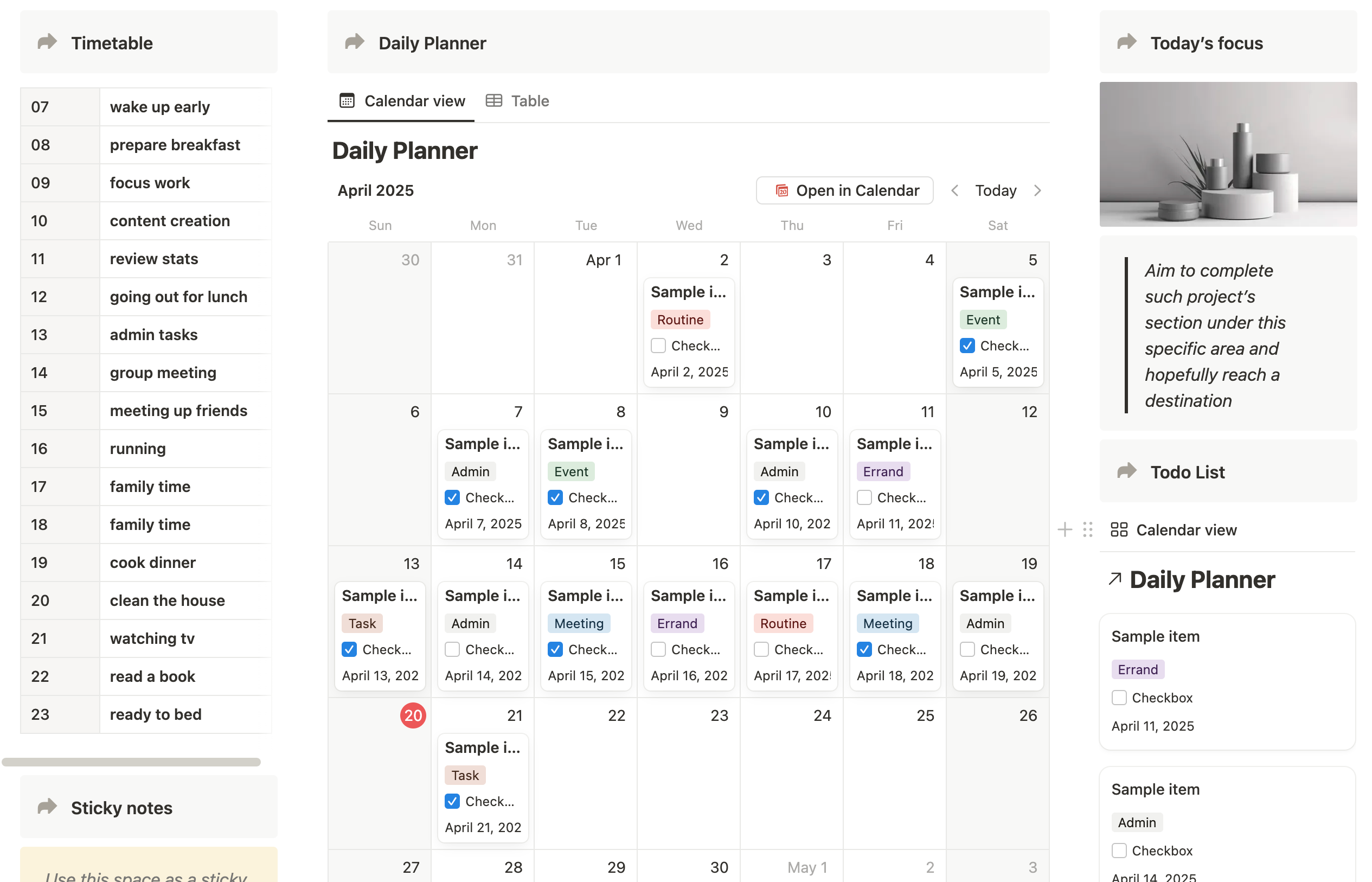
What You’ll Build in This Notion Daily Planner
Before you start, here’s a quick look at what you’re going to set up inside Notion. This is a simple Notion daily planner setup designed for beginners who want a clear and practical way to organize their day.
You’ll create a clean daily planner made of a few key parts:
- A daily timetable to plan your day hour by hour
- A task list to keep track of things you need to do
- A “Today’s Focus” section to highlight your most important task
- A small notes area for quick reminders or ideas
There’s nothing complicated here — no heavy setup or advanced features. Just a straightforward layout that helps you build a daily planner in Notion that actually works in real daily use.
If you’ve been looking for a Notion planner for beginners, this is the exact layout you’ll build next.
Create Your Notion Daily Planner Page (Basic Setup)
To start your Notion daily planner setup, the first step is creating a clean page where everything will live. This is the foundation when you build a daily planner in Notion — nothing complex yet, just setting up the space.
Open Notion and click “+ New Page”. Name it something simple like Daily Planner or My Daily Planner. This keeps your workspace aligned with a typical Notion planner for beginners setup.
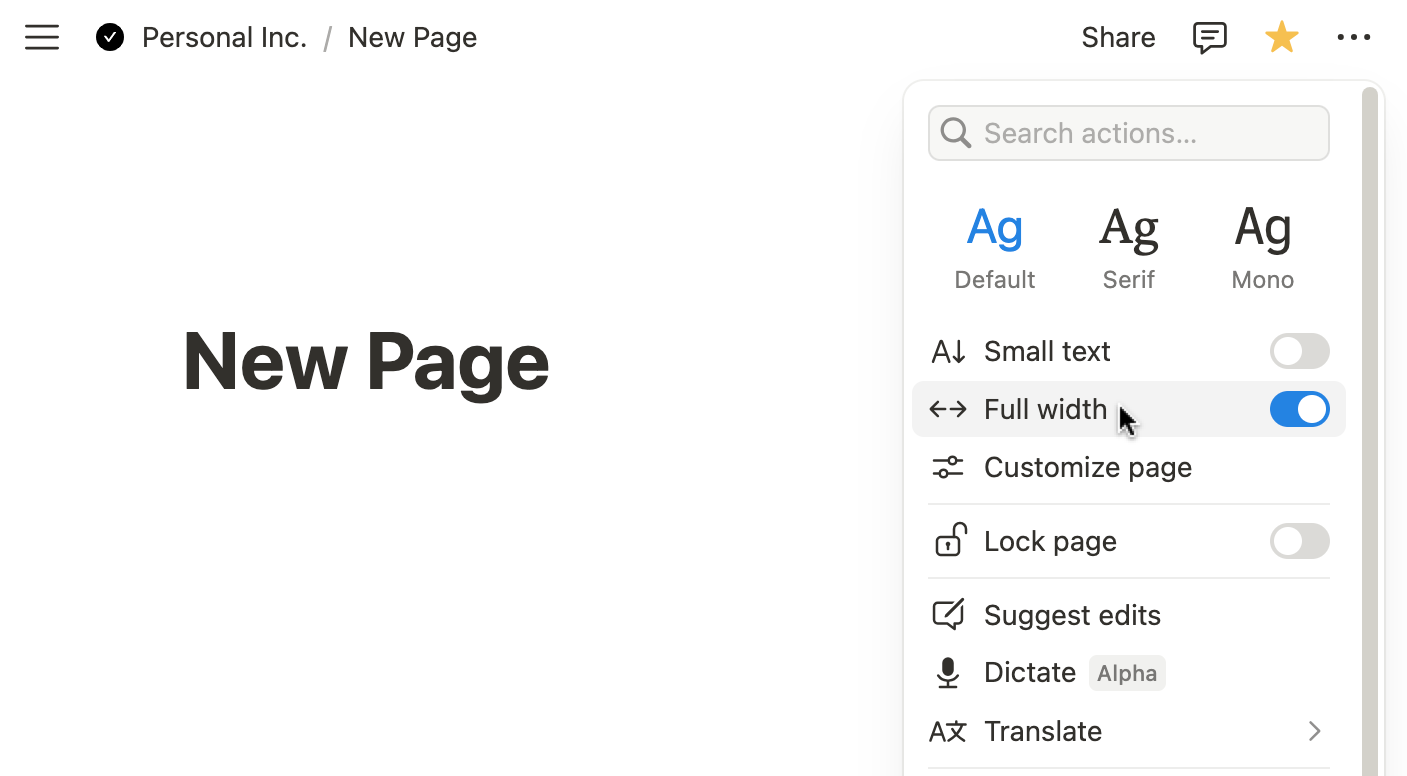
Once you creaed a new page, in the top-right menu, click the ••• options and enable Full Width. This gives you more space to build your layout later, especially when you expand your Notion daily planner setup in the next steps.
At this stage, don’t add anything else yet. No databases, no widgets, no structure. The goal is just to create a clean starting point for your Notion daily planner setup for beginners.
If you want a more structured layout, you can now create columns for your planner.
In your empty page:
- Type /columns to create a multi-column layout (e.g. 2 or 3 columns)
- Drag blocks into each column to organize your workspace visually
- Adjust spacing by dragging column edges until it feels comfortable
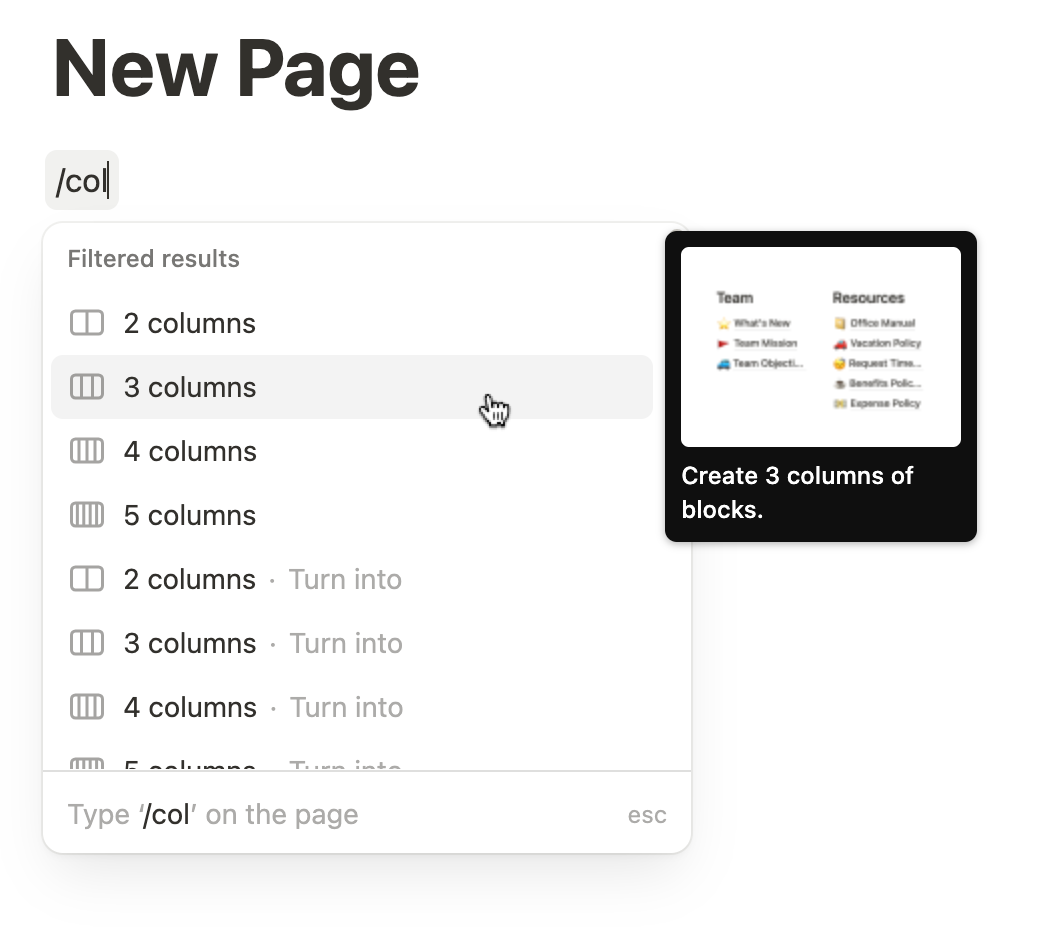
To adjust the spacing, simply drag the edges of each column to make them narrower or wider according to your preference.

Build Your Daily Time Planner (Simple Time Blocking)
Now that your page is ready with a 3-column layout, the next step in your Notion daily planner setup is creating a simple way to plan your day by time. This helps you see your day at a glance instead of keeping everything in your head.
Start by creating a section called “Today’s Schedule” or “Daily Timetable” inside the far-left column. This will act as your time-blocking area for the day.
Then add a simple structure inside it:
- Use a callout block to visually group your timetable (this also helps it stand out on your page)
- Inside the callout, insert a simple table with two columns
- Left column → time slots (e.g. 07:00, 08:00, 09:00)
- Right column → activities or tasks for each time block
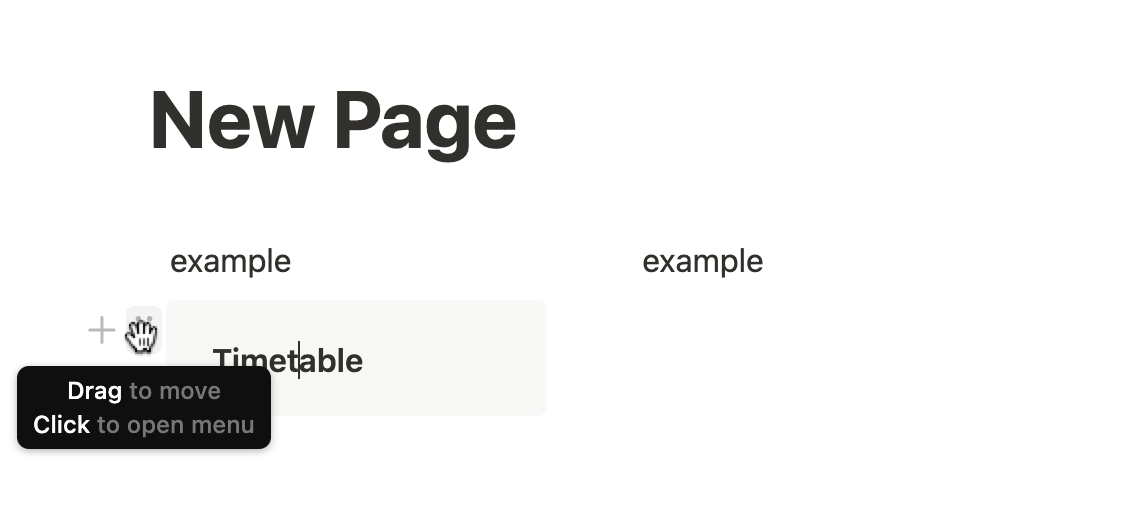

You can adjust the look by changing the callout icon and background color so it matches your style and is easy to spot during your day.
This doesn’t need to be rigid or perfectly structured. You can use broad blocks like morning, afternoon, and evening, or detailed hourly planning depending on how you work.
The goal is simple: to create a visual daily plan inside Notion so you’re not constantly deciding what to do next.
Add Your Task Tracker (Simple Notion To-Do System)
This is where your daily tasks actually live inside Notion. After setting up your timetable, you now need a simple place to capture everything you need to get done in a day.
Start by adding a section called “Tasks” or “Today’s Tasks” inside your layout.
This will act as your main to-do area in your Notion daily planner setup.
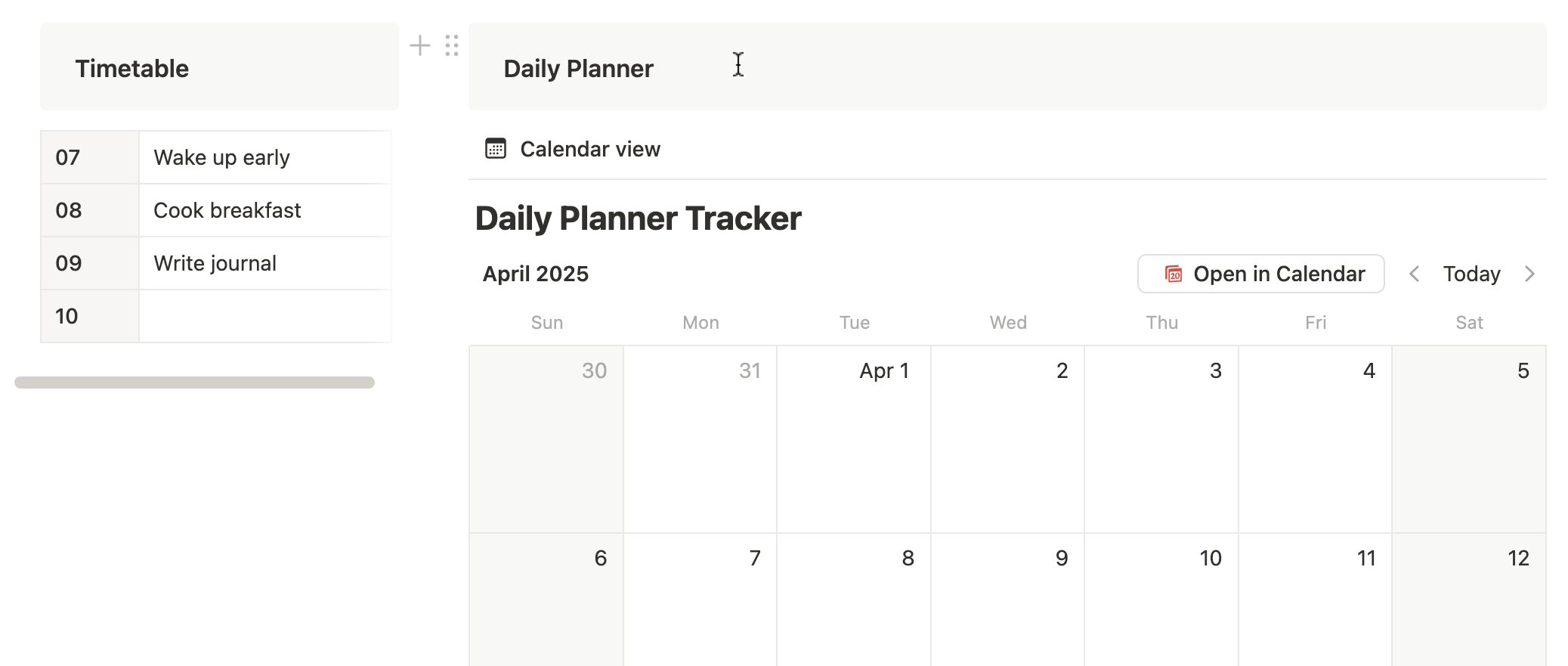
Then create a simple calendar database to store your tasks. Keep it clean and minimal — you don’t need advanced setup to make it work.
At a basic level, each task should include:
- Task name → what you need to do (e.g. “Reply to emails”)
- Done checkbox → mark tasks when completed
- Category (optional) → Work, Personal, Errands, Meetings, etc.
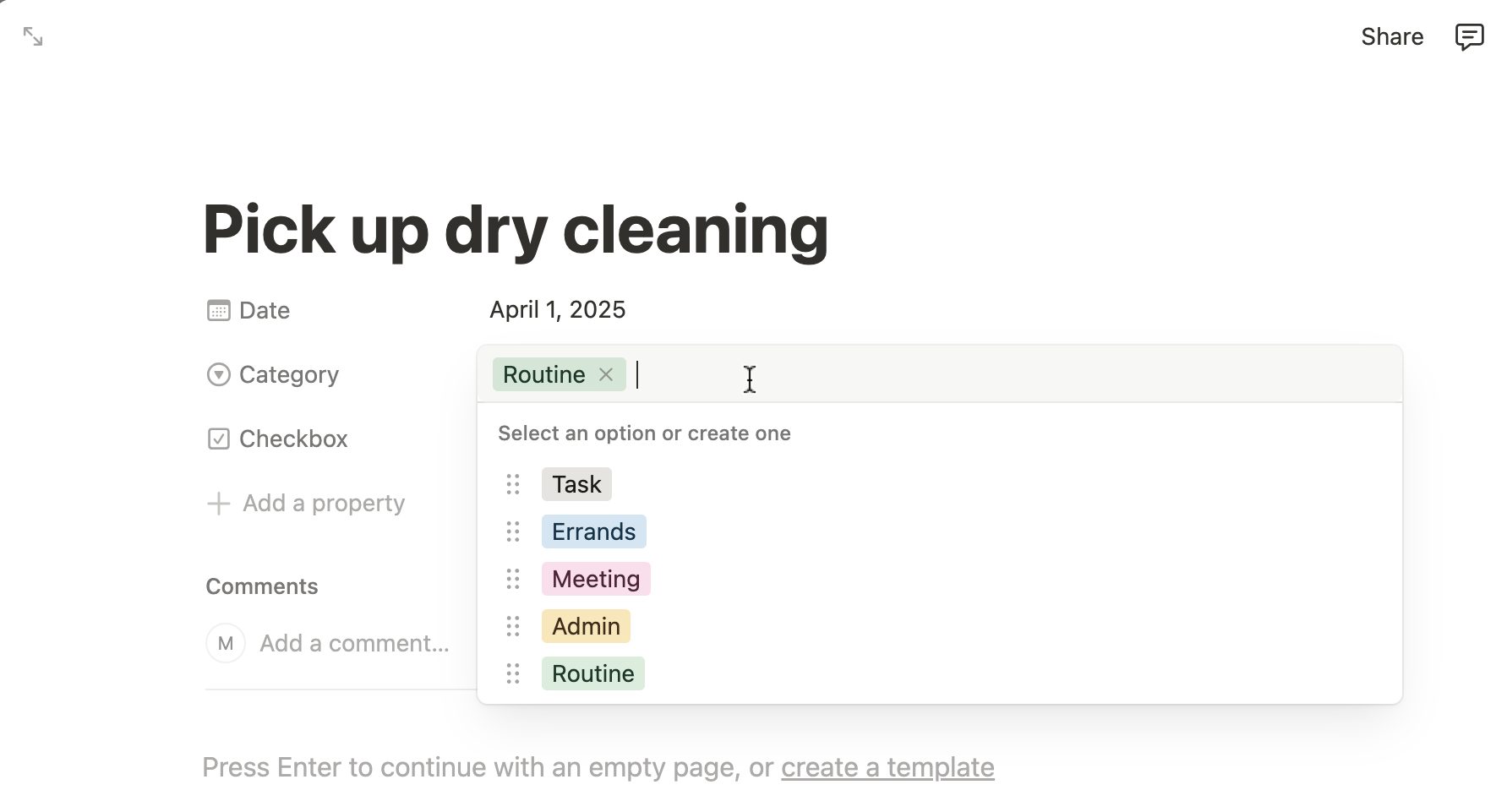
When you open an entry from the Calendar, you can add the property fields called "Category":
- Change the property type to Select (instead of Multi-select).
- Add useful categories like:
- Task
- Errand
- Meeting
- Event
- Admin
- Routine
That’s it. No extra views, no complicated setup, no overthinking.
The goal here is to create a clear daily to-do list inside Notion that you’ll actually use, not something that feels heavy or confusing. Every time you add a task, it should take just a few seconds.
This section becomes your main control center for daily execution.
Create a List View for Your Tasks (Clean Overview)
While your calendar helps you plan your day, sometimes you just want a simple list where you can quickly see all your tasks and check them off. This gives you a clearer, more direct way to manage your Notion daily planner setup.
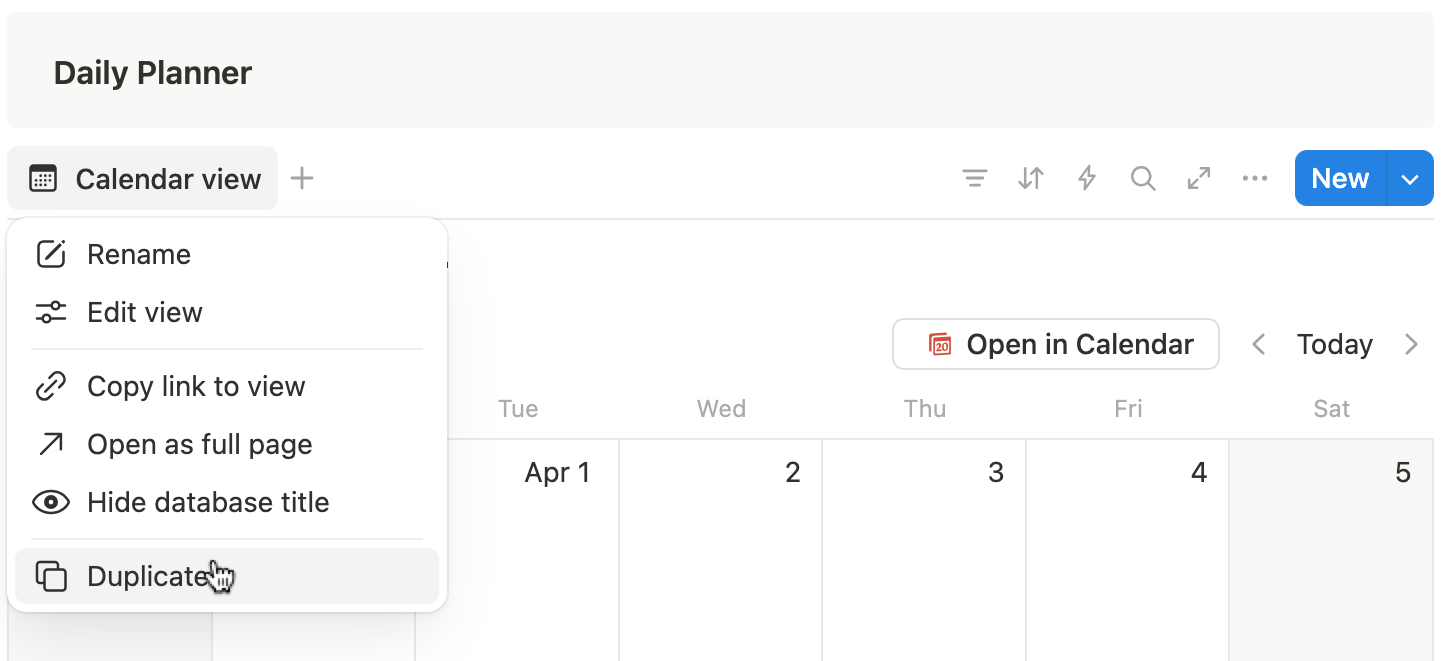
Start by using your existing task database and create a new view for it. Duplicate your current calendar view and rename it to something like “Task List”.
Duplicate the Calendar View
- Click on the name of your calendar view (usually says “Calendar” at the top of the database).
- Select “Duplicate view”.
- Rename it to something like “Task List”.
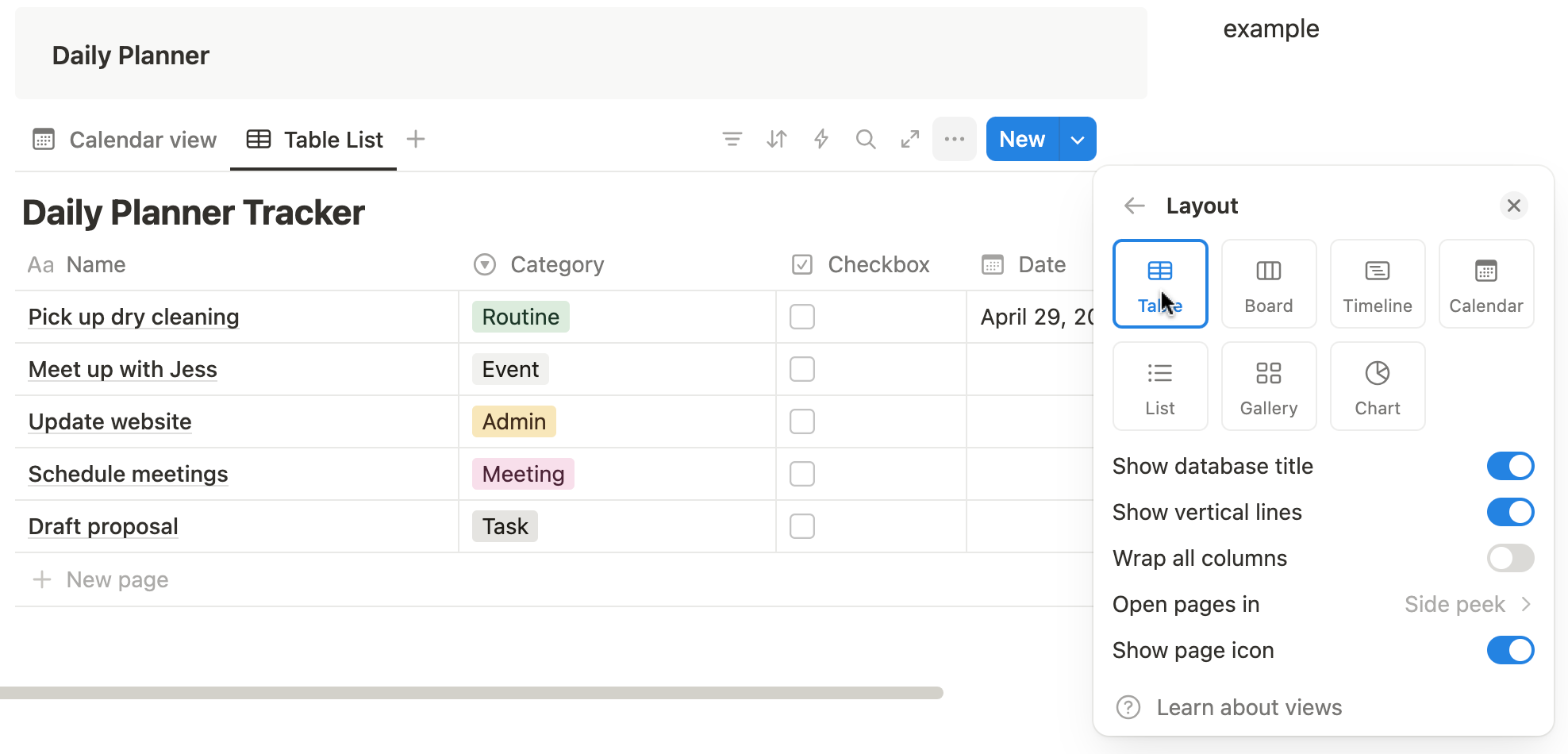
Then switch it into a clean table layout so your tasks are easier to scan:
- Change the view layout to Table view for a simple checklist-style format
- Make sure you can see key fields like task name, category, date, and completion status
- Add a checkbox in the table view to help track task completion
- Adjust or hide any unnecessary properties so the view stays clean and focused
This view is useful because it removes all visual noise and lets you focus purely on execution. You can quickly scroll through your tasks and check them off as you complete them.
When combined with filters like “only show incomplete tasks,” this becomes a fast, efficient way to manage your daily workload inside Notion.
Add Sticky Notes for Quick Reminders
Sticky notes are a simple but useful part of your Notion daily planner setup, especially when you want to capture quick thoughts, reminders, or ideas without interrupting your main workflow.
Start by adding a section called “Sticky Notes”, “Quick Notes”, or “Reminders” anywhere on your dashboard. This can sit in a side column or at the bottom of your layout depending on how you organize your page.
Then create your sticky notes using simple callout blocks in Notion:
- Type /callout to create a note block
- Add a short message inside each block (e.g. “buy groceries”, “follow up with client”, “ideas for later”)
- Customize each note with different colors and icons so you can quickly recognize different types of reminders
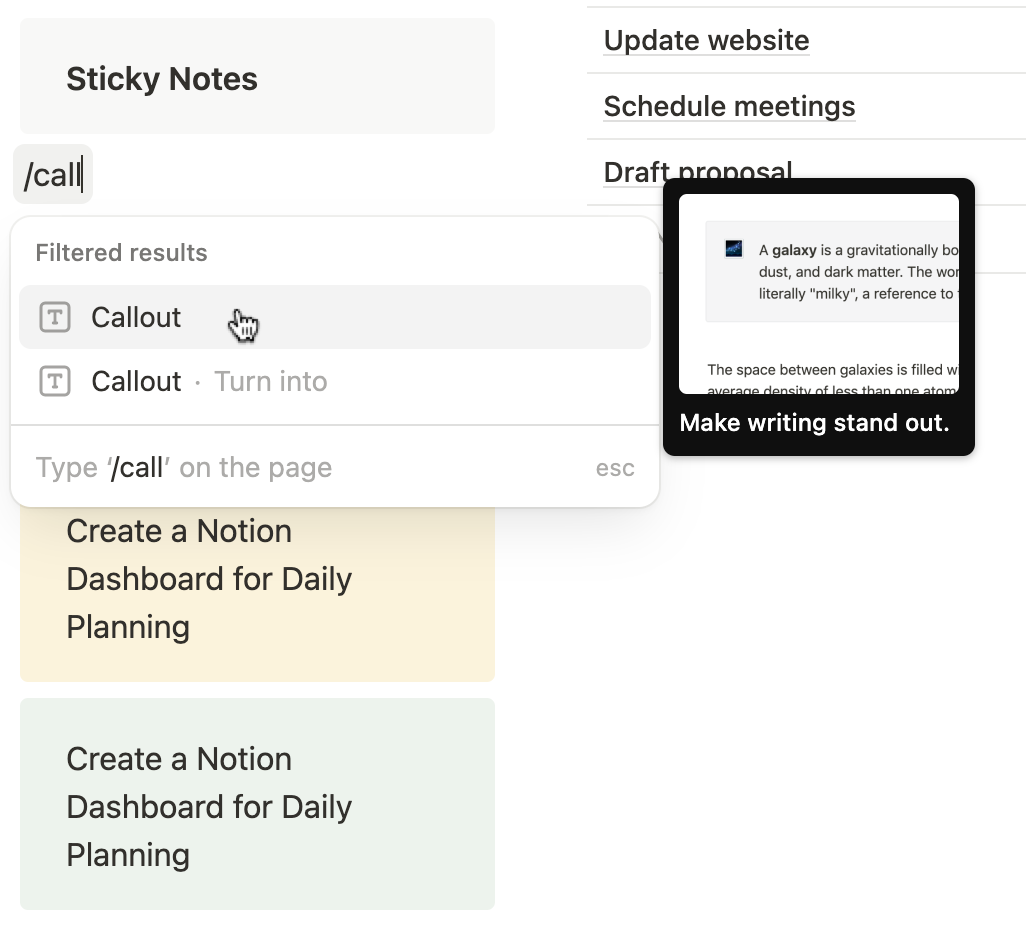
You can create multiple sticky notes for different purposes — for example, one for reminders, one for ideas, and one for personal notes.
This section is useful because it gives you a fast capture space inside Notion, so small thoughts don’t interrupt your main task flow or get forgotten during the day.
Unlike your main task list, these notes are meant to be lightweight and flexible — just quick inputs you can glance at throughout the day.
Add a “Today’s Focus” Section (Stay Clear on Priorities)
To stay clear and intentional throughout the day, it helps to define one main priority — the single most important thing you want to complete today inside your Notion daily planner setup.
This section is designed to reduce distraction and keep your attention focused on what actually matters.
Start by adding a section called “Today’s Focus” or “Main Priority” anywhere on your dashboard. This is usually placed near the top or in a visible column so it stays in your line of sight throughout the day.
Then build it using simple elements:
- Add a heading to make the section stand out
- Optionally include a small image or visual that sets the tone for your day
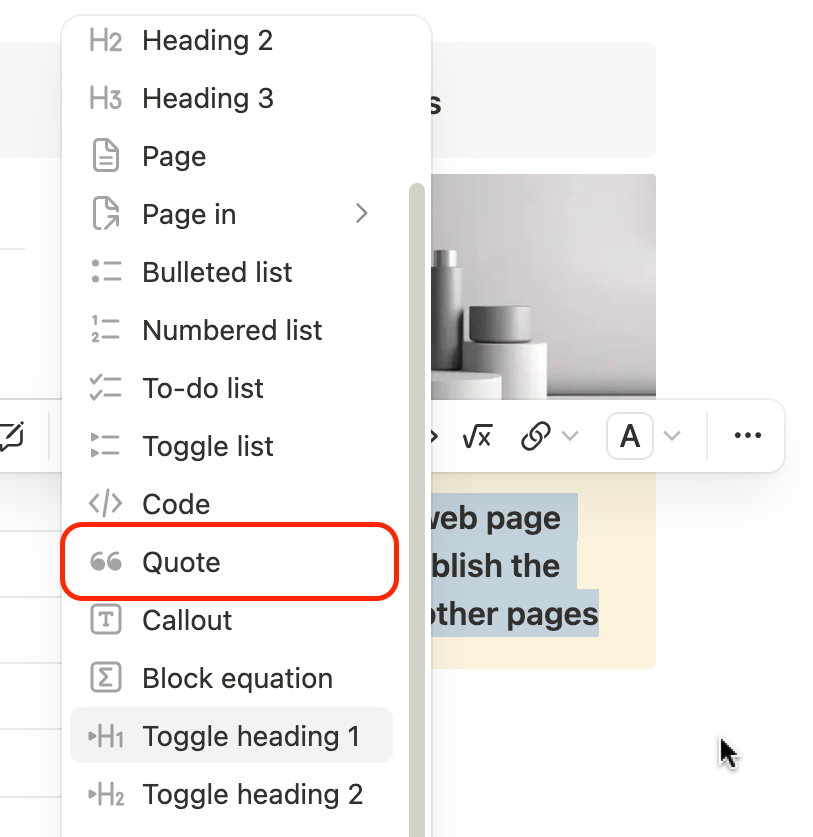
- Add a callout or quote block underneath where you write your main focus for the day (e.g. “Finish project draft” or “Complete study session”)

You only need one clear focus — not a list of tasks. This helps you avoid switching between too many priorities and keeps your day structured.
Pro Tip: Keep this section small and visible near the top or corner of your dashboard. It works best when it's the first thing you see and a quick reminder of what really matters today.
When to Upgrade Your Notion Daily Planner
This Notion daily planner is designed to stay simple and easy to use every day. For most people, this setup is enough to plan tasks, manage time, and stay focused without needing anything more complex.
After using it for a while, you may naturally want more structure — like tracking habits, connecting tasks across different areas, or getting a broader overview of your work and life inside Notion.
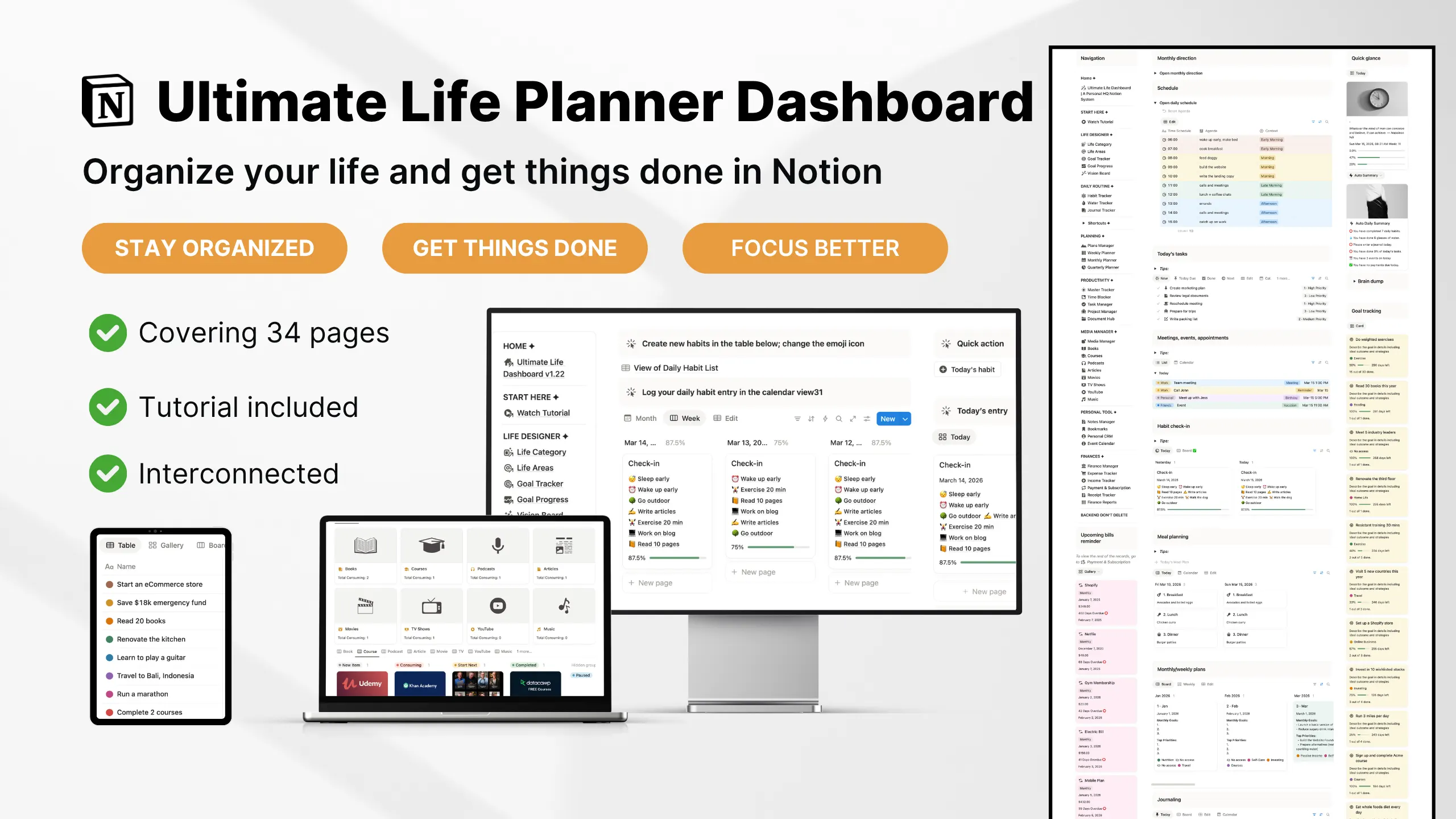
When that happens, you can move to a more advanced setup, such as a Notion life planner template, which expands beyond daily planning into long-term organization.
This beginner setup is the foundation for that. Once you understand this simple version, upgrading later becomes much easier because the structure already makes sense.
Frequently Asked Question
1. What is the easiest way to create a daily planner in Notion?
A simple setup starts with a single Notion page, then adding a basic timetable, a task list, and a “today’s focus” section. No advanced databases or templates are needed to begin.
2. How do I organize my day in Notion effectively?
You organize your day by splitting it into time blocks, listing tasks in a simple checklist, and highlighting one main priority for focus. Keep the structure minimal so it’s easy to maintain daily.
3. Can beginners use Notion as a daily planner?
Yes. Notion is beginner-friendly when you stick to simple blocks like tables, checklists, and callouts. You don’t need formulas, relations, or advanced setup to get started.
4. What should be included in a Notion daily planner?
A basic daily planner should include a timetable (or schedule), a task list, and a focus section. Optional additions like notes or reminders can help but are not required.
5. Is Notion good for daily task management?
Yes. Notion works well for daily tasks because you can combine checklists, databases, and simple views in one place, making it easier to track and complete tasks.
6. How do I avoid overcomplicating my Notion setup?
Start with only essential elements: tasks, schedule, and focus. Avoid adding multiple databases, dashboards, or systems until you actually need them in daily use.
7. What is the difference between a Notion template and a manual setup?
A template is pre-built and ready to use, while a manual setup helps you understand how the system works. Beginners often benefit more from manual setup before switching to templates.
8. How do I make my Notion planner actually usable every day?
Keep it simple, open it every morning, update tasks daily, and focus on one main priority. The key is consistency, not complexity.
9. Do I need a database for a Notion daily planner?
Not necessarily. You can start with simple tables or checklists. A database becomes useful only when you need filtering, tracking, or scaling over time.
10. Why do most Notion planners stop being used?
Most people overbuild them. Too many sections, too much customization, and unclear daily usage flow make the system hard to maintain consistently.