


If you’re thinking about using Notion to organize your personal life—whether it’s for tasks, habits, goal tracking, journaling, or finances—this post is for you. By creating your own personal life hub in Notion, you can bring everything together and see what truly matters in one clear dashboard.
In this guide, we’ll walk through the complete Notion life dashboard setup, from clarifying your dashboard’s purpose to designing layouts, setting up core databases, connecting views, and organizing your workspace for daily use.
You’ll also find practical Notion dashboard setup ideas, realistic examples, and tips to avoid overbuilding—so your personal Notion life dashboard stays useful, flexible, and easy to use over time.
To get started, visit the official Notion website and sign up for a free Notion account. Yes, you don’t need a paid plan to build this dashboard. Once you’re logged in, you can start designing your workspace by following the dashboard setup steps below.
Clarify the purpose of your Notion life dashboard
Before you start building anything in Notion, you need to define the purpose of your life dashboard.
This step is essential if you want to create a functional personal Notion life dashboard instead of a cluttered workspace you stop using after a week.
In simple terms, ask yourself:
- What do I want my Notion life dashboard to help me do every day?
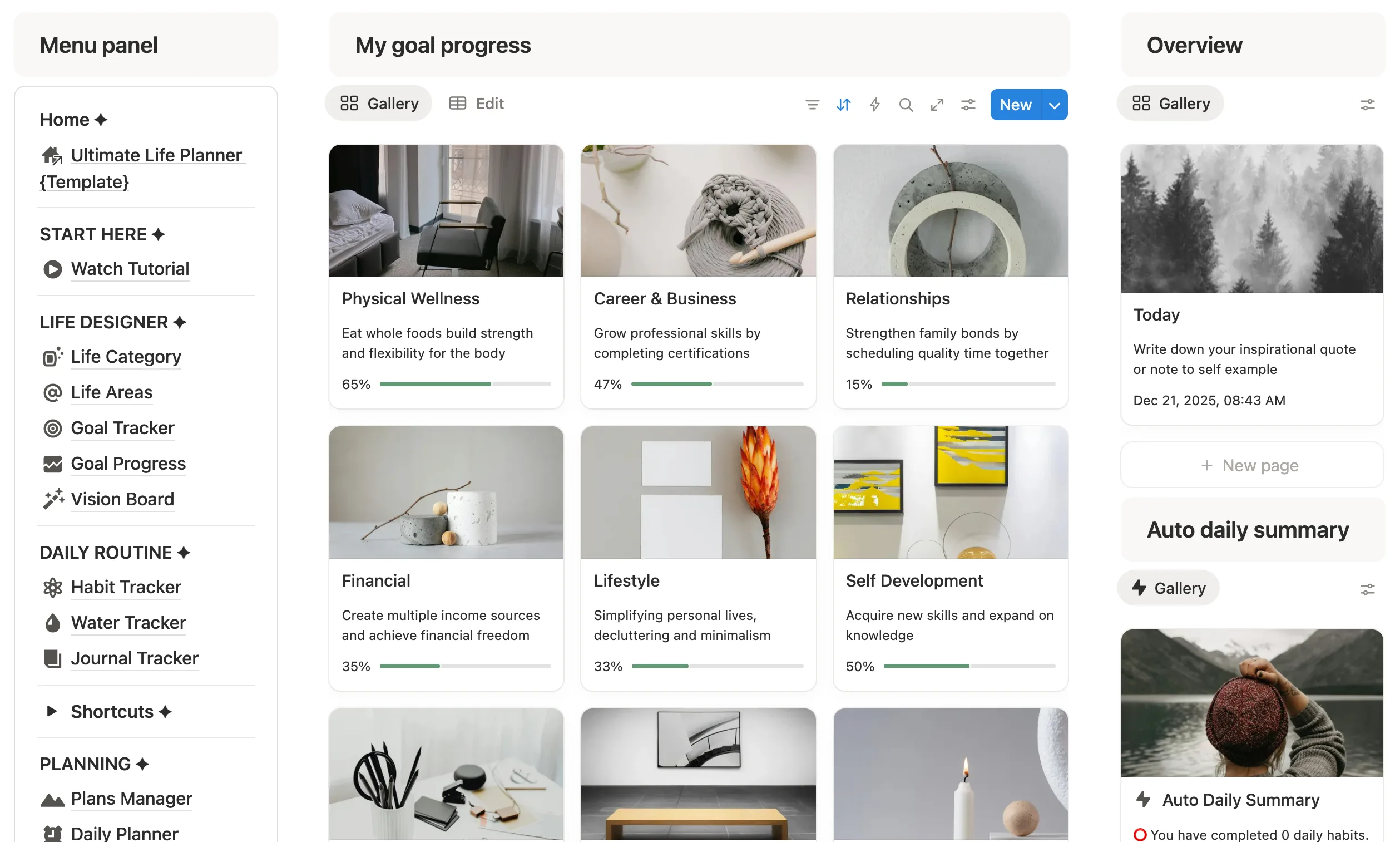
A well-designed life dashboard in Notion should show the most important areas of your life at a glance, without overwhelming you.
List down the core areas of your personal life
Start by identifying the core life areas you want to include.
Everyone’s needs are different. A student may prioritize tasks and learning. A working adult may focus on goals, finances, and time management. That’s why a good Notion life planner adapts to your life instead of forcing you into a rigid structure.
Common core areas for personal life management include:
Featured: Notion Life Dashboard & Personal Planner
If you're looking for a complete system that combines goals, projects, tasks, habits, notes, finances, and planning into one workspace, see this Notion Life Planner Template.
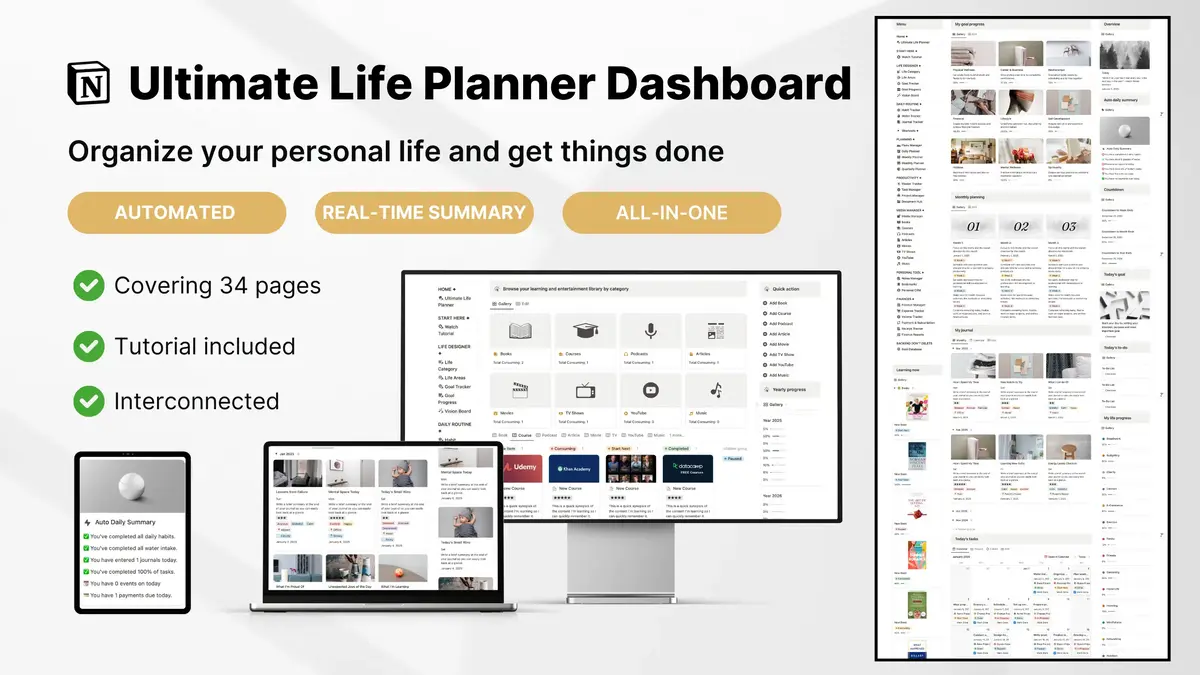
Create a main “life dashboard” page in notion
To build a life dashboard in Notion, the next step is creating a clear and intentional main page.
This page acts as your central hub—the place you open first when managing your life in Notion.
In the first few seconds, your Notion life dashboard page should give you clarity, not stress.

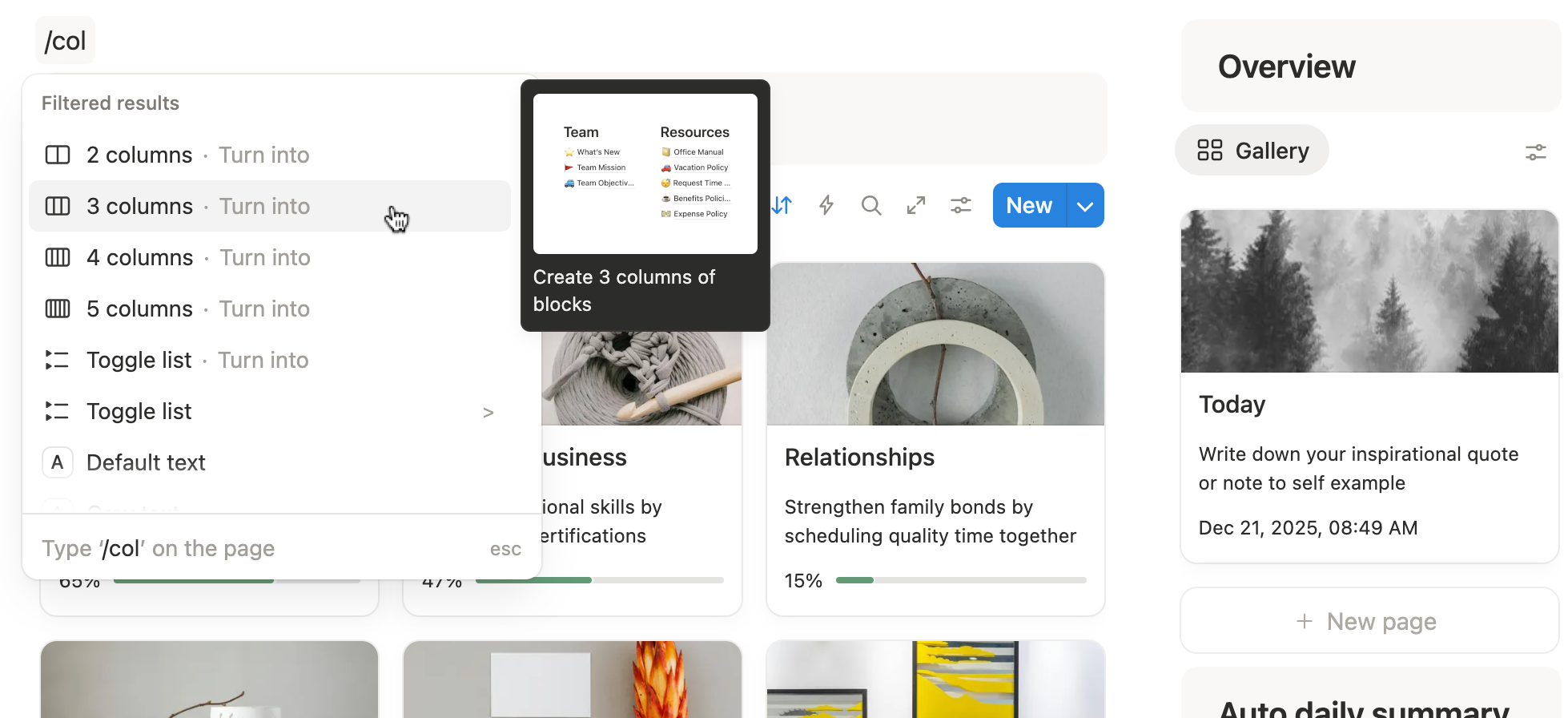
Create the Notion layouts using columns
First, create an empty page for your Notion Life Dashboard. Name it something simple, such as My Life Hub or Personal Hub. Next, maximize the page by enabling Full width in the page settings at the top right corner.
Now, add a Column layout to your empty page using two or three columns. This helps you divide your Notion dashboard into clear sections, such as left, center, and right columns. Adjust the column widths so each section has the space it needs.
For example, place navigation and menus on the left, daily tasks, goals, and habits in the center, and finance or learning sections on the right.
At this stage, avoid adding databases or widgets. You are setting up the container, not the content.
Set up the core databases for Notion life tracking
On your Notion Personal Hub, add the “database – inline” element to get started. Create separate databases for the major areas of your life:
- Tasks: Track daily to-dos, deadlines, and priorities.
- Goals: Log long-term objectives and measure progress over time.
- Habits: Monitor routines, streaks, and daily consistency.
- Finances: Record expenses, income, and budgets in one place.
- Events: Keep upcoming events, appointments, and deadlines visible.
- Learning: Track books, courses, podcasts, and other personal growth activities.
Each database serves a specific purpose. Make sure to include property names, meaningful columns, and only the formulas you truly need.
For example, a task database is more than a simple to-do list. It can show today’s tasks, task’s types, custom tags, creation dates, priorities, or tasks linked to specific goals—all from the same database.
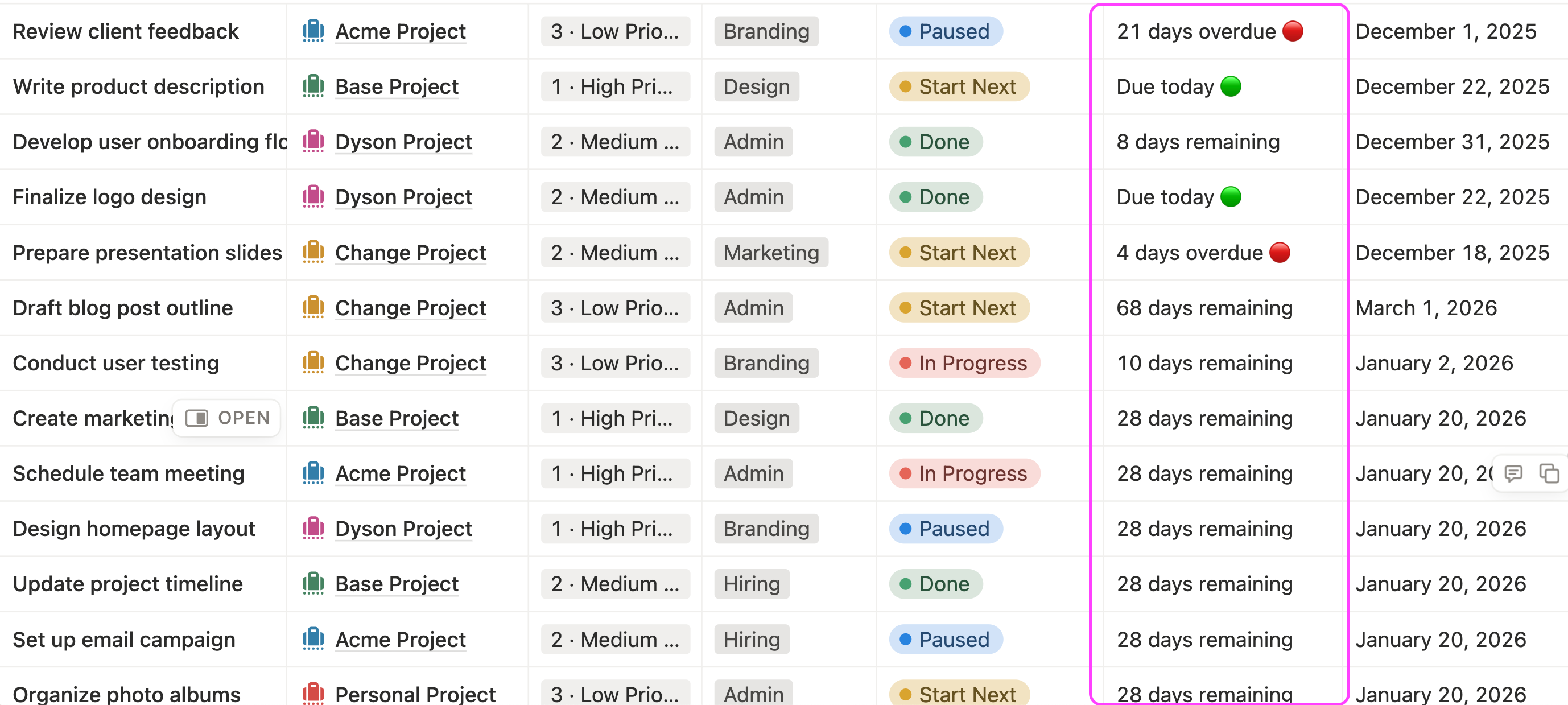
Notion databases vs. Excel spreadsheet
Many people approach Notion databases thinking they are just spreadsheets.
At first glance, Notion databases and Excel spreadsheets look similar.
Both use rows and columns, and both store structured information. This similarity leads many people to assume they work the same way. In reality, they serve very different purposes.
Excel spreadsheet:
- Focuses on calculations, data analysis, and number-heavy workflows.
- It works best when you need precise formulas, complex math, or large datasets.
- Each sheet often stands alone, and you usually copy or duplicate data to view it in different ways.
Notion database:
- Focuses on organization and systems.
- Each row is a page, not just a cell. A single item—such as a task, goal, or expense—can contain notes, links, files, and context.
- One database can also power multiple views across your workspace without duplicating data.
- It's super visual-driven and colorful for easier access.
💡 Pro Tip: Stop using Notion database like a spreadsheet and start using it as a connected system.
Left column: Notion life workspace menu navigation
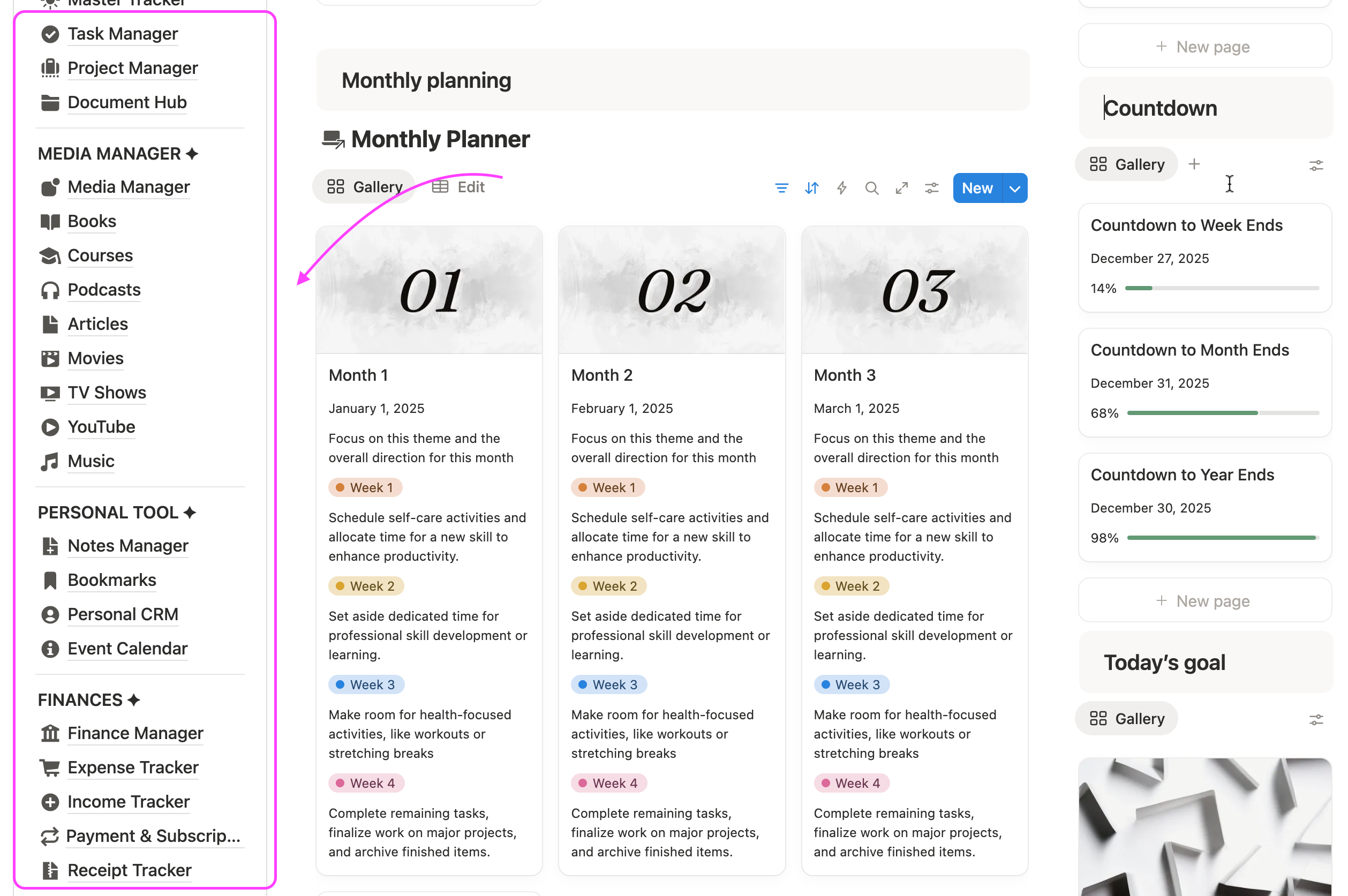
Once you’ve set up your Notion layout using columns, the next step is to customize the content in your left column. This column works best as the main menu navigation for your Notion life dashboard.
Think of the left column as your personal control panel. It gives you quick access to the most important areas of your life without needing to search or scroll.
How to set up Notion menu panel
Start by adding Notion pages for each core area of your life—tasks, goals, habits, finances, learning, life tracking, and events.
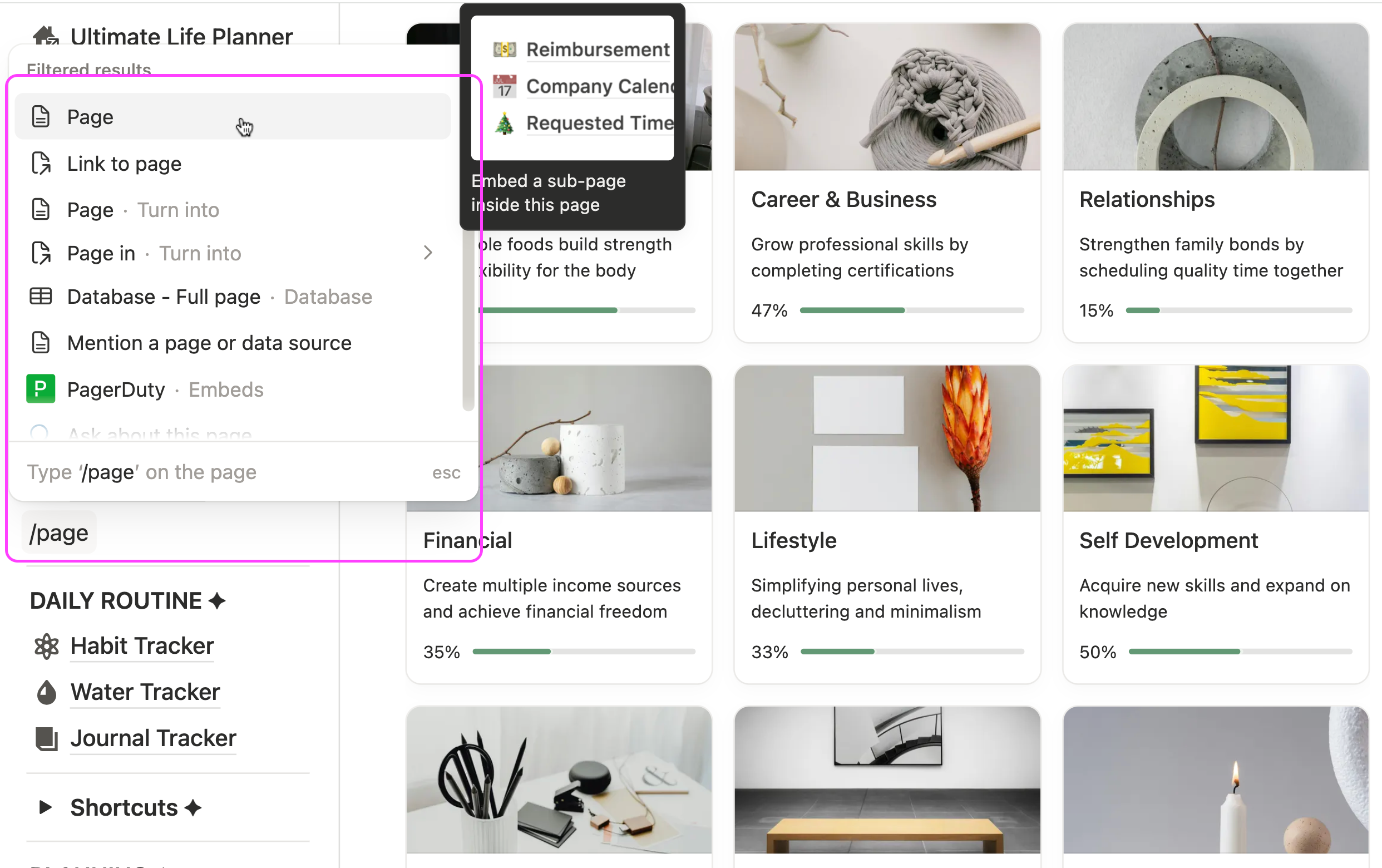
Name each page clearly so it’s instantly recognizable. For example, instead of “Page 1” or “Dashboard,” use descriptive names like Tasks Hub, Goals Hub, or Finance Tracker. This makes your navigation intuitive and easy to use daily.
Each page can house the relevant databases, including custom filtered views and individual dashboards. For instance:
- The Tasks Hub page could show today’s tasks, this week’s priorities, and tasks linked to specific goals.
- The Goals Hub page could display only active goals with progress bars and related milestones.
- The Finance Hub page could show this month’s spending, income, and account balances filtered by category.
Here’s an example of what it looks like inside the Personal Media Hub.
As you can see below, this dedicated page acts as a dashboard that houses different types of content consumption, such as books, podcasts, articles, online courses, movie series, and even favorite music.
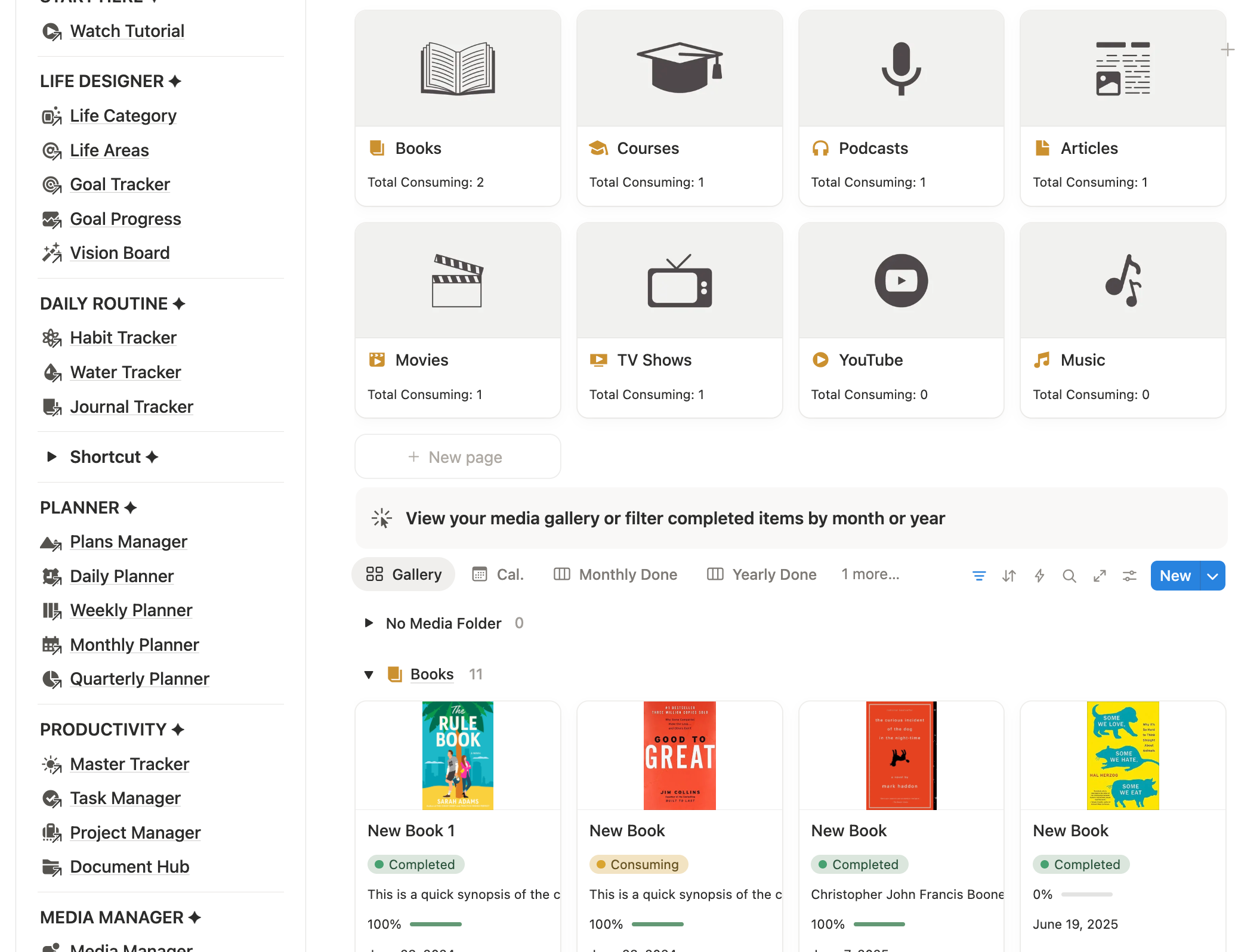
This structure allows your dashboard to surface only the most relevant information in each area while keeping everything organized. You don’t have to scroll through long lists or duplicate databases; one database can power multiple views across pages.
Middle column: daily planning and execution section
The middle column should answer one simple question the moment you open Notion: What should I work on today?
This is your primary action area. You will interact with this section the most, so it should prioritize clarity, focus, and forward movement. Use the middle column to surface tasks, plans, and habits that require attention today or this week, not long-term reference material.
A well-designed middle column reduces decision fatigue. Instead of scanning multiple pages or lists, you can immediately see what matters next and start executing without hesitation.
Here are key elements that work well in the middle column:
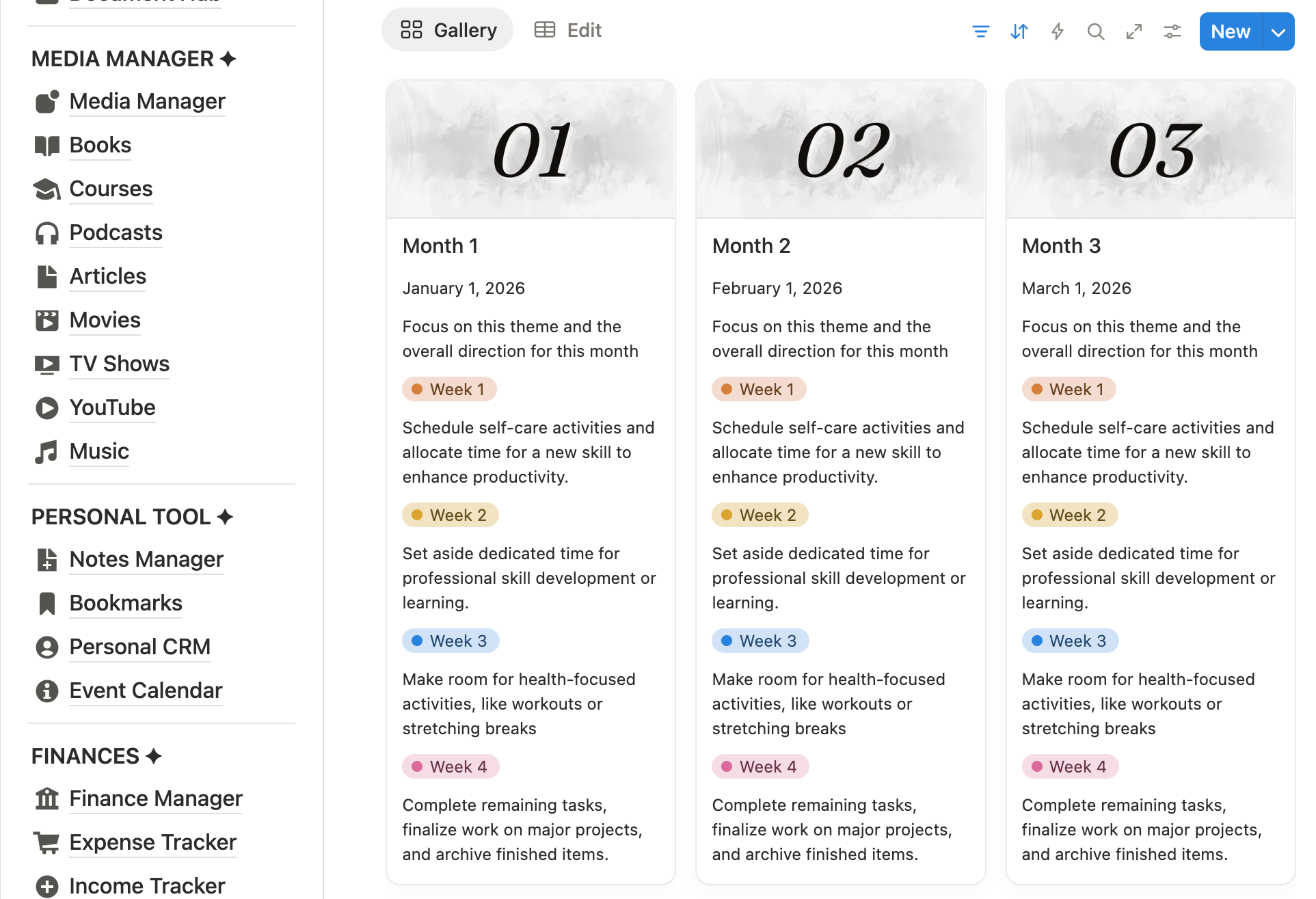
Weekly and monthly planning
Set the overall direction for each month, then break it down into what needs to be done on a daily basis. This ensures you execute your original plan instead of getting sidetracked by impulsive actions that are often mistaken for productivity.
Tasks and project tracking
Display active tasks and ongoing projects using list, board, or table views. Filter out completed items to keep the view focused and actionable. Linking tasks to projects or goals adds helpful context without clutter.
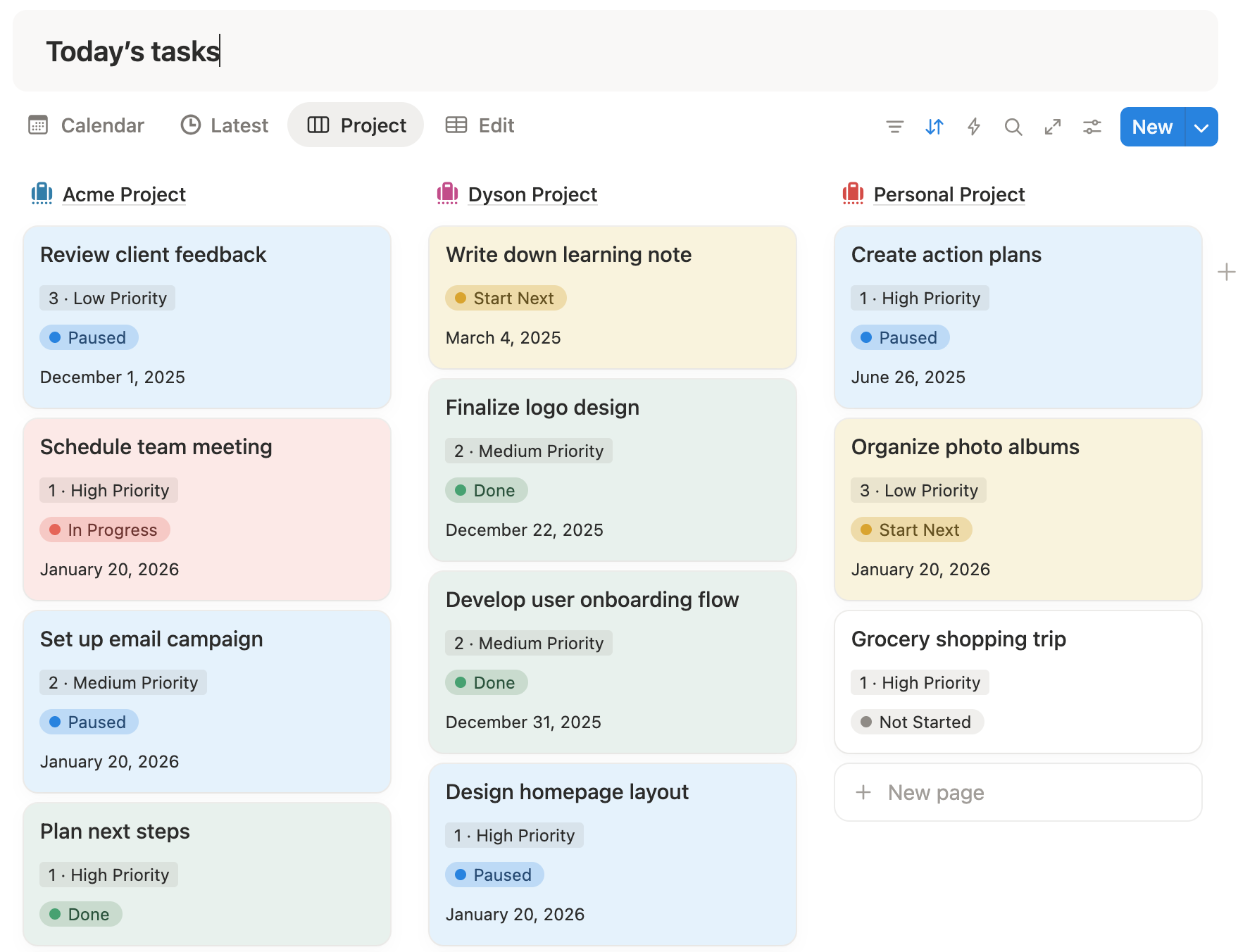
Timetable or calendar schedule
Include a calendar or timeline view to visualize your day or week. Seeing meetings, deadlines, and personal commitments in one place makes time planning more realistic.
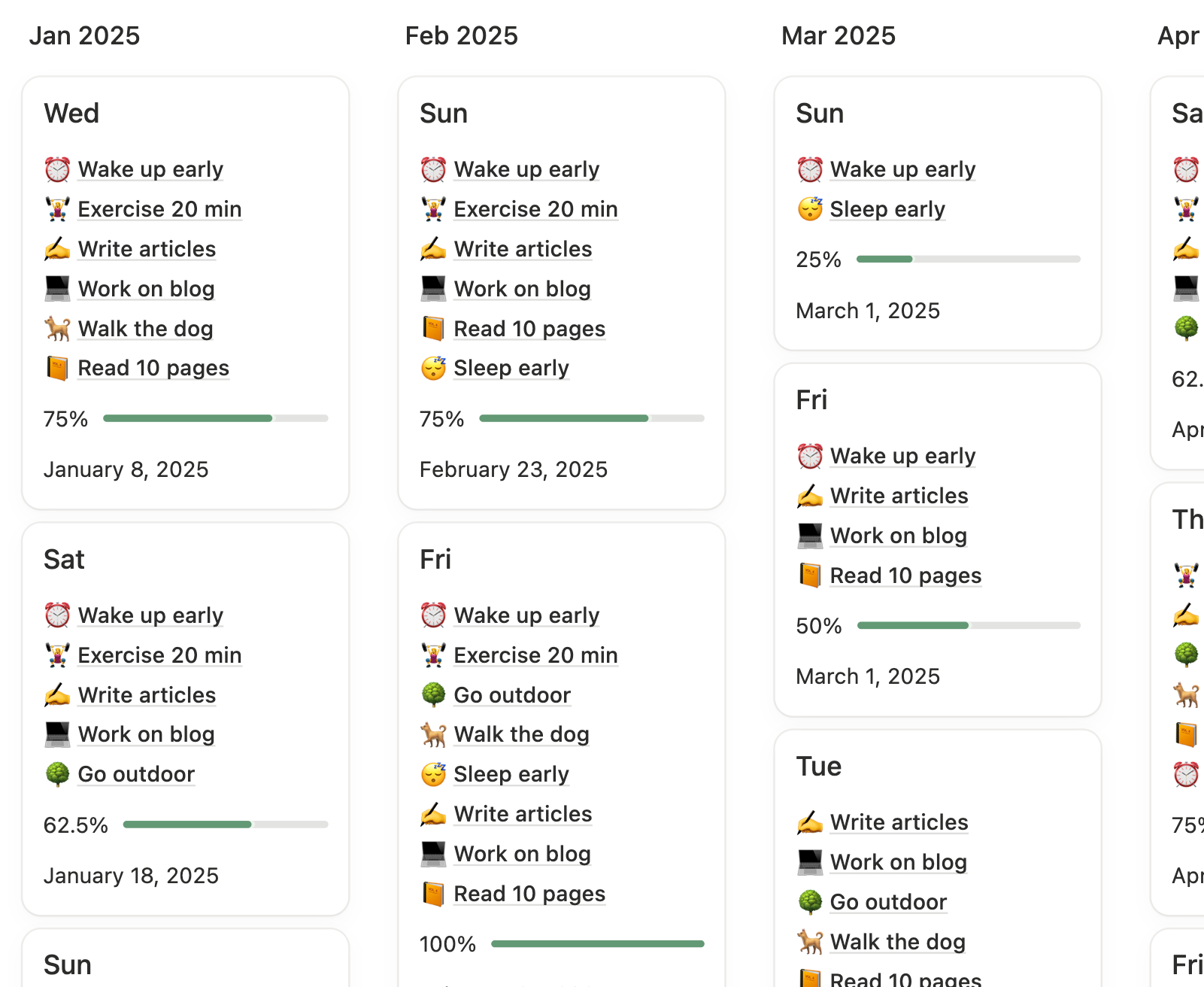
Habit tracking
Show only your active habits for the current day or week. This keeps habit tracking lightweight and encourages consistency without overwhelming you with history.
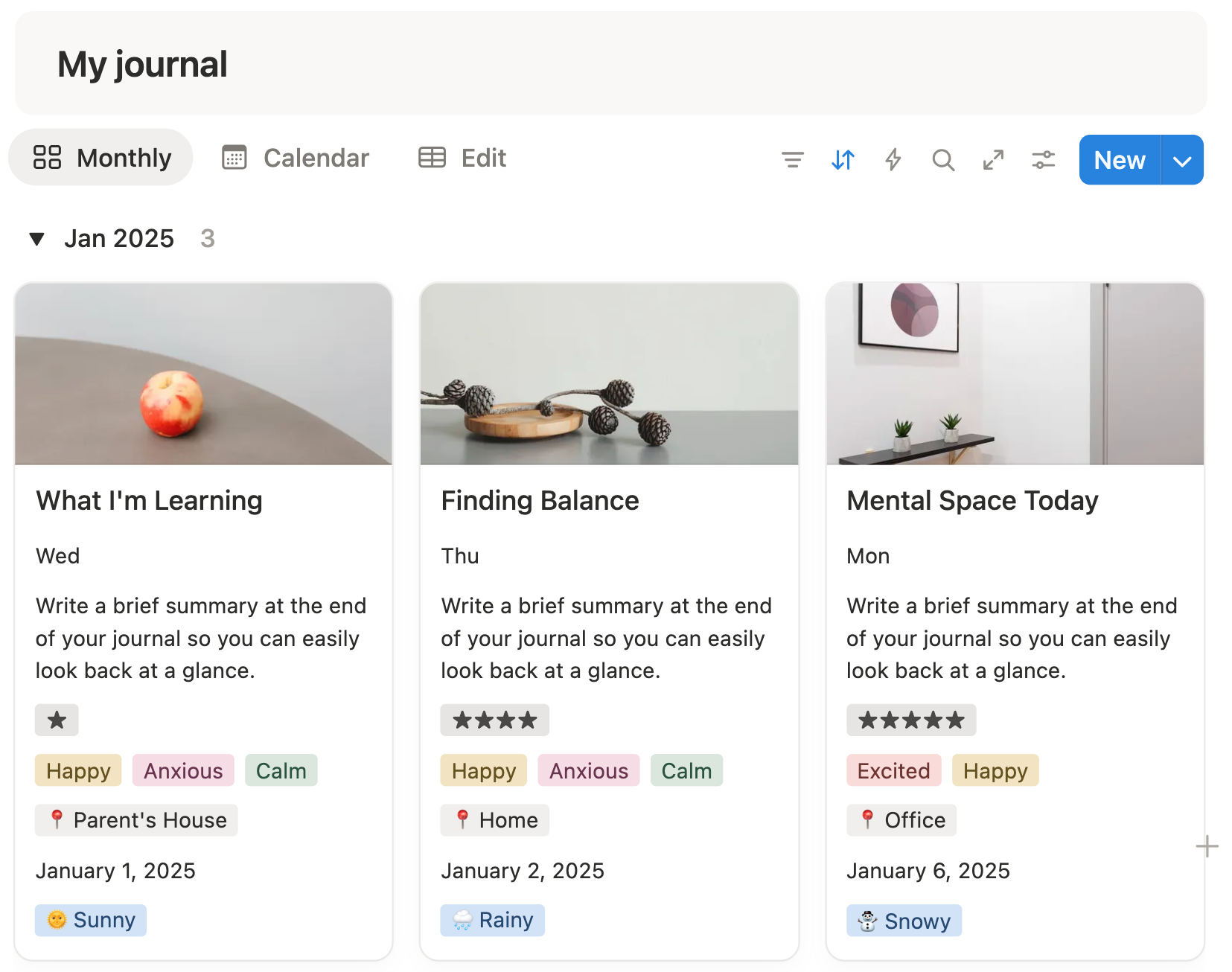
Journal entries and mood tracking
Add a quick journal or mood check-in section for daily reflection. Even a short entry helps you notice patterns over time, especially when paired with tasks and habits.
Right column: reminders and events
Use the right column for reminders and time-sensitive information. This area works best as a quick reference section that keeps important dates, deadlines, and summaries visible at a glance.
In my Notion life planner dashboard, the right column includes the following elements:
- Built-in clock widget. Displays today’s date and time, along with a daily quote and cover image for light inspiration and orientation.
- Upcoming payments. Shows subscriptions and recurring expenses, including due dates and amounts, so you can anticipate costs and plan your budget more accurately.
- Events for this week and next week. Highlights near-term commitments such as meetings, catch-ups, and family gatherings. Seeing these ahead of time helps you schedule your days more realistically.
- Daily auto report. Provides a quick snapshot of what you’ve completed versus what’s still pending. This includes tasks done, tasks remaining, and overall daily progress—so you can review your day in seconds.
Tips to avoid a messy notion life dashboard
Often, when people first start using Notion, they get excited and immediately start adding functions, trackers, designs, and widgets all over their workspace..
At first, it feels productive and fun, but over time, this approach leads to clutter, confusion, and decision fatigue. Pages become overloaded, databases get duplicated, and it’s hard to find or update information. What started as a tool for organization can quickly turn into a chaotic workspace that is frustrating to use daily.
The key to avoiding this is to start simple and intentional: define your core life areas, decide what information truly matters, and gradually add functionality. A clean, minimal structure ensures your Notion dashboard remains useful, maintainable, and motivating—rather than just visually appealing.
1. Avoid Overdesigning
It’s tempting to use fancy covers, icons, emojis, dividers, and colors everywhere. Overdesigning can make your dashboard visually overwhelming and harder to use daily. Focus on clarity and usability first; aesthetics are secondary.

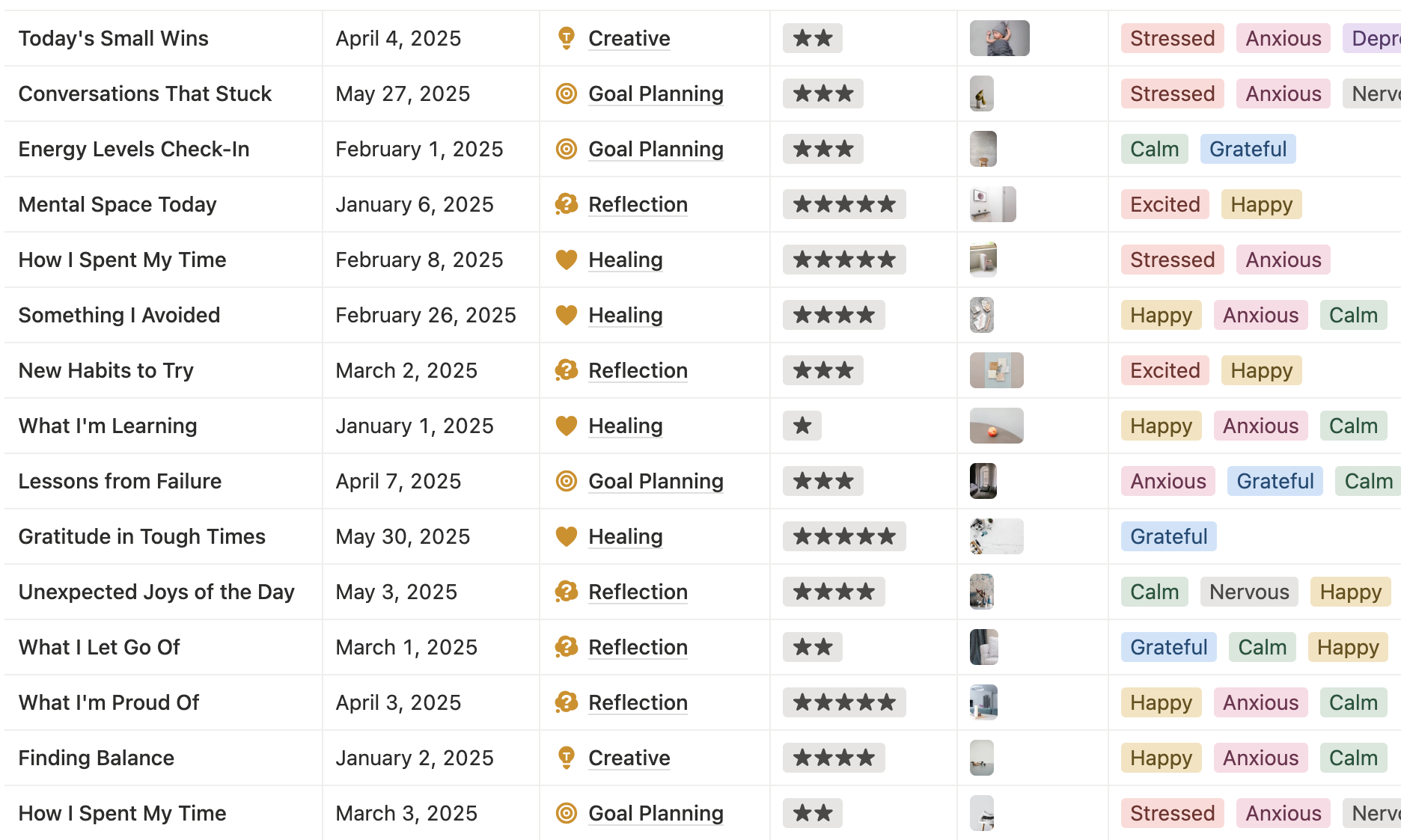
2. Use Databases Instead of Simple Pages
Pages are static, while databases allow for filtering, sorting, linking, and multiple views. If you rely only on pages, your dashboard won’t scale well as you add more tasks, goals, or projects.
3. Link Databases Instead of Duplicating Them
Duplicating a database creates multiple sources of truth, which can lead to confusion and extra maintenance. Instead, create linked database views for different pages or dashboard sections. That way, updates happen in one place and reflect everywhere.
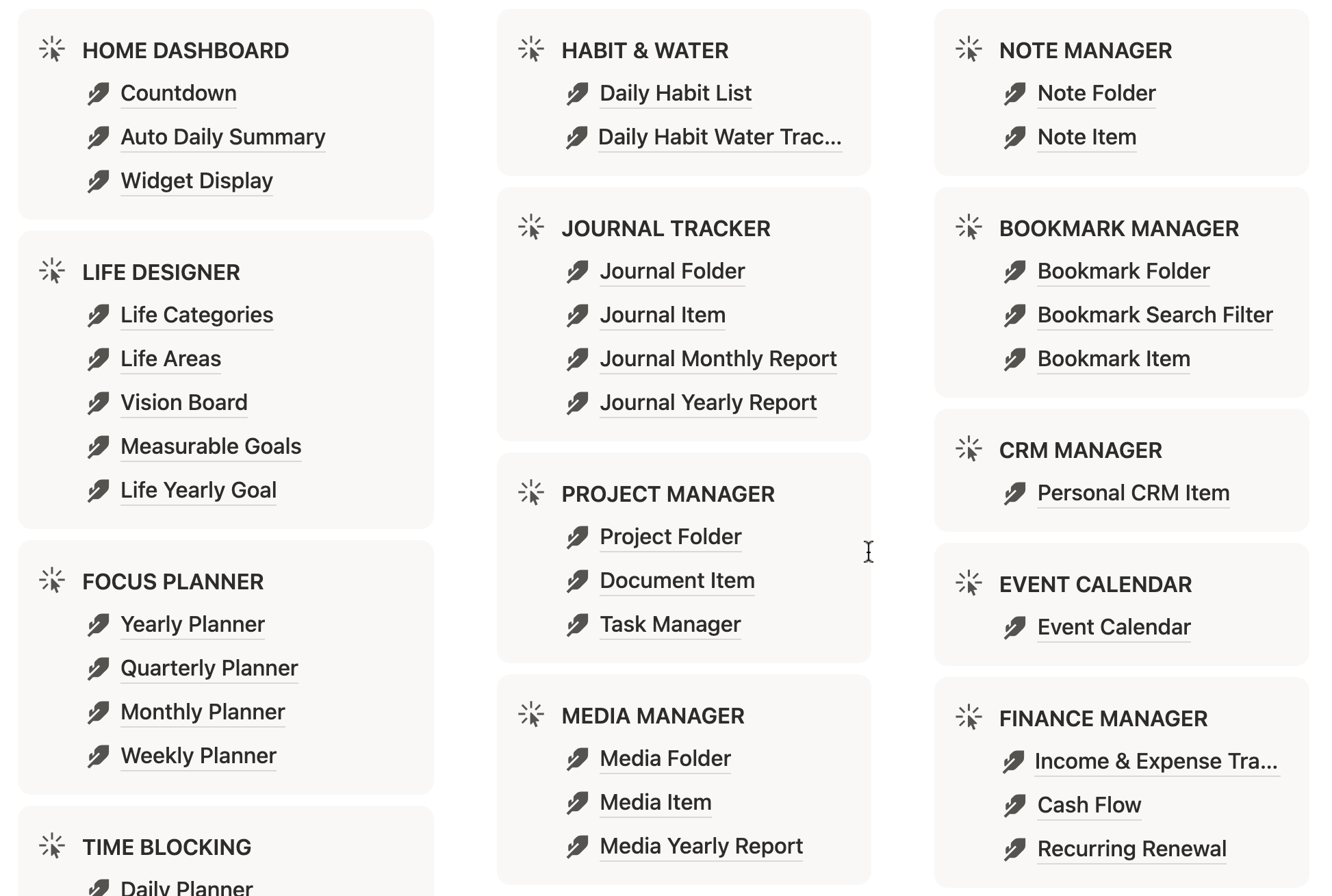
4. Limit the Number of Dashboard Sections
Too many sections can create decision fatigue and clutter. Start with core areas that matter most, such as tasks, goals, habits, and finances. You can always expand as your workflow stabilizes.
5. Use Clear Naming Conventions
Ambiguous names like “Misc,” “Stuff,” or “Dashboard 2” make navigation harder over time. Use descriptive names that reflect the content or purpose, e.g., Daily Tasks, Habit Tracker, Finance Overview.
6. Avoid Unnecessary Formulas or Complex Setups Too Early
While Notion formulas are powerful, beginners often add too many before understanding their workflow. Focus on simple properties first, then gradually add formulas as needed.
7. Regularly Review and Prune
A dashboard is a living system. Remove sections, views, or pages that you no longer use. A clean, lean dashboard is easier to maintain and more effective for daily planning.
💡 Pro Tip: The best Notion life dashboards pull you back in because they’re useful, not just because they look nice—although aesthetics are a nice bonus.
Video: Notion life planner template with dashborad
Learn how to build a Notion life dashboard using the databases from Clarity Mastery's template:
Frequently asked questions
1. What is a Notion life dashboard?
A Notion life dashboard is a central page that helps you manage your personal life in one place. It connects tasks, goals, habits, finances, journals, and other life areas into a single, organized system. Instead of jumping between multiple apps or pages, you see what matters most at a glance.
2. Is Notion good for organizing your entire personal life?
Yes, Notion works very well for personal life organization when set up intentionally. You can track daily tasks, long-term goals, habits, finances, learning, and reflections in one connected workspace. The key is to start simple and build a system that matches your real-life needs.
3. Do I need a paid Notion plan to build a life dashboard?
No, you do not need a paid Notion plan to build a life dashboard. The free Notion account includes everything needed to create pages, databases, linked views, and dashboards. Paid plans are only necessary if you need advanced team features or large file uploads.
4. How many databases should a Notion life dashboard have?
A good Notion life dashboard usually starts with five to seven core databases. Common ones include tasks, goals, habits, finances, events, learning, and life tracking. Fewer databases keep the system manageable and easier to maintain as your life grows and changes.
5. What is the best layout for a Notion life dashboard?
A two-column or three-column layout works best for most Notion life dashboards. The left column is ideal for navigation, the middle column for daily planning and execution, and the right column for reference areas like finances or learning. This structure keeps your dashboard clear and easy to scan.
6. How do I keep my Notion life dashboard from getting messy?
To keep your Notion life dashboard clean, avoid adding too many trackers and designs at once. Use databases instead of pages, link databases instead of duplicating them, and regularly remove sections you no longer use. A simple system is easier to maintain and more effective long-term.
7. Can beginners build a Notion life dashboard from scratch?
Yes, beginners can build a Notion life dashboard even without prior experience. Notion’s drag-and-drop interface makes it easy to create pages, columns, and basic databases. Following a step-by-step setup helps you avoid overcomplication early on.