

Introduction
Are you trying to set up a Notion productivity dashboard but still feel like your system never actually becomes productive?
You’re not alone.
Most Notion dashboards look organized on the surface—but in practice, they don’t improve how you work.
You might have separate pages for tasks, goals, notes, and habits, yet still find yourself switching between them without a clear sense of direction.
The issue usually isn’t Notion itself—it’s what you’ve included in your setup and how those parts are organized.
Most dashboards are built as collections of pages, rather than a clear structure of what actually needs to be inside a productivity system.
In this guide, you’ll see exactly what to include in a Notion productivity dashboard, broken down into six essential sections so you can build a setup that actually supports your daily work.
👉 If you're looking for a complete system that combines goals, projects, tasks, habits, notes, finances, and planning into one workspace, see this Notion Life Planner Template.
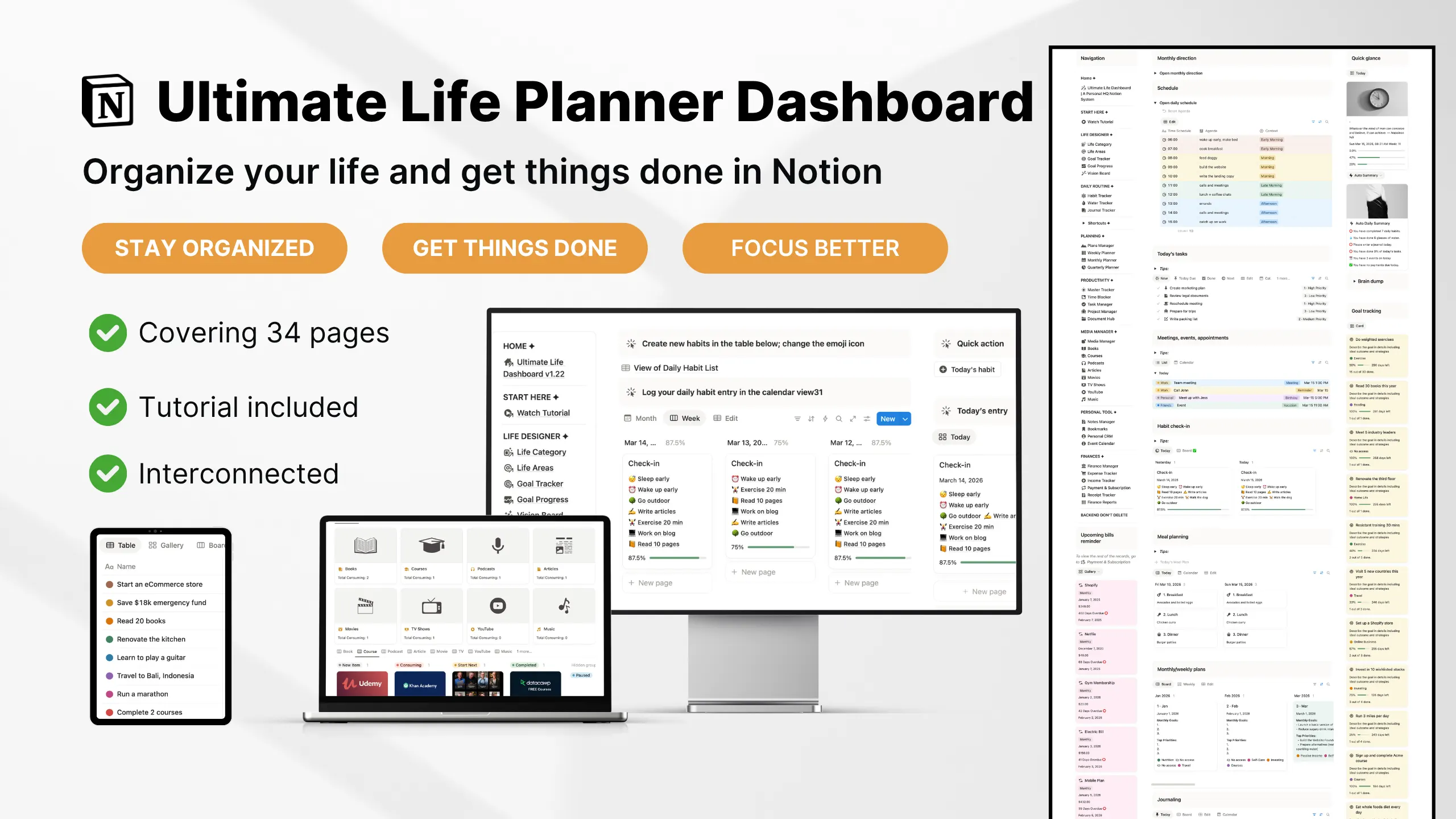
What to Include in a Notion Productivity Dashboard (Overview)
A Notion productivity dashboard works best when it includes a small set of clearly defined sections that handle different parts of your daily and long-term work.
Instead of building random pages or adding features as you go, a functional setup is usually structured around a fixed set of core components.
These components cover the main areas of productivity:
- planning your day
- managing tasks and priorities
- tracking long-term goals
- maintaining daily habits
- handling meetings and external commitments
- centralizing access through one dashboard
Each section has a specific role inside the system, and together they form a complete structure for managing work inside Notion.
If any of these components are missing, the system tends to break down in predictable ways — tasks become scattered, planning becomes unclear, and consistency becomes harder to maintain.
The sections below break down exactly what each component should include and how it functions inside your dashboard setup.
Section #1: A Central Dashboard (Your Command Center)
A central dashboard is the main page of your Notion productivity setup where all key information is brought together in one place.
If you’re deciding what to include in a Notion productivity dashboard, this is the section that connects everything else. It acts as the entry point to your tasks, goals, habits, and daily planning.
Instead of spreading information across multiple pages, a central dashboard includes quick access to the most important parts of your system.
Typically, this section includes:
- a view of today’s tasks or priorities
- quick access to tasks, goals, habits, and planning areas
- a snapshot of active projects or ongoing work
- links to main databases and pages
- a daily planner or schedule overview

The purpose of this section is simple: it brings your key information into one place so you can quickly see what matters and navigate to it without searching.
In most setups, this is the first page you open each morning to check tasks, upcoming events, and today’s priorities in one view.
Section #2: Daily Time Blocking
A daily time blocking section is part of a Notion productivity dashboard that is used to organize your tasks into specific time slots throughout the day.
If you’re deciding what to include in a Notion productivity dashboard, this section is responsible for turning a task list into a structured daily schedule.
Most users adjust this section at the start of the day or the night before to plan how their tasks fit into available time slots.
Instead of leaving tasks unassigned, this section typically includes:
- a daily timeline divided into time blocks (morning, afternoon, evening)
- tasks assigned to specific time slots instead of a single to-do list
- a view of today’s planned schedule in chronological order
- labels or tags for context (work, personal, deep work, admin)
- a reusable daily template for resetting the schedule each day

Each time block is usually grouped by part of the day, such as morning, midday, or evening, to help structure what gets done and when.
In some setups, tasks are also tagged by context so the schedule is easier to scan and adjust during planning.
This section works alongside your task manager: the task manager defines what needs to be done, while time blocking defines when it is placed in the day.
Without this section, your dashboard only shows tasks. With it, your tasks are organized into a clear daily sequence of execution.
Section #3: Task Manager System
A task manager is a section inside a Notion productivity dashboard that stores and organizes all tasks in one database.
If you’re deciding what to include in a Notion productivity dashboard, this section defines what needs to be completed.
Instead of a basic to-do list, this section includes:
- a single task database
- status labels (to-do, in progress, done)
- priority levels (low, medium, high)
- project or category tags
- filters for active and completed tasks

Each task has structure so you can sort and view work based on context.
This section does not schedule tasks. It only defines what tasks exist and how you organize them.
Tasks are usually added here throughout the day whenever new work appears, then filtered later based on priority or project.
Time blocking handles when you do the tasks.
Section #4: Meetings, Appointments, and Events
This section in a Notion productivity dashboard is used to track time-based commitments that are not fully under your control.
It includes anything scheduled with other people or fixed in advance. For example, meetings, calls, client work, appointments, events, and social plans.
A good productivity system is not only about your own tasks. It also needs to account for time that belongs to other people or fixed events.
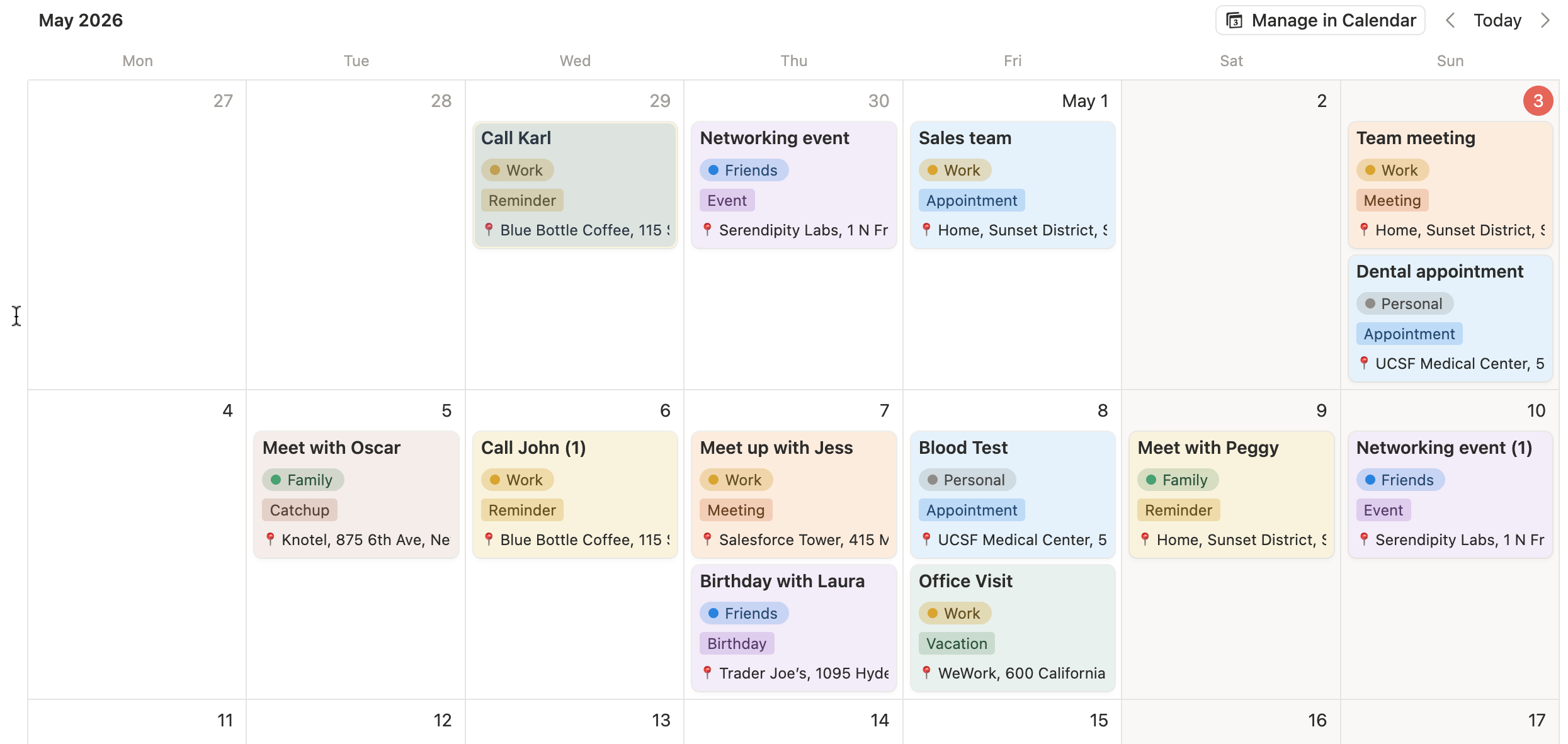
Most Notion setups ignore this layer. They focus only on tasks you choose to do, not on commitments already fixed on your calendar.
Each entry is stored with basic details such as:
- date and time
- type of commitment (work or personal)
- short notes or agenda if needed
This keeps all external commitments visible in one place so they can be planned alongside your tasks and time blocks.

Section #5: Daily Habit Tracker
A habit tracker is a section inside a Notion productivity dashboard used to track daily routines and repeated actions.
If you’re deciding what to include in a Notion productivity dashboard, this section stores the habits you want to complete on a regular basis.
Habit tracking is different from task tracking. Tasks are created and finished once. Habits are pre-set and checked off repeatedly.
This section typically includes:
- a habit database with one entry per habit
- checkbox or status property to mark completion each day
- a simple daily view showing today’s habits only
- a weekly view to see consistency over time
- optional grouping by area (health, work, learning, personal)

Most setups keep habits in a repeating template so each day starts with the same checklist already generated.
In practice, you open your daily page and the habit section is already there. You just mark what you completed and move on.
This section exists to track consistency across repeated actions, not to plan or prioritize work.
Section #6: Goal Progress Tracking
A goal progress tracker is a section inside a Notion productivity dashboard that tracks long-term goals and their current progress.
If you’re deciding what to include in a Notion productivity dashboard, this section shows whether your daily work is connected to larger outcomes.
Goals are not managed at the task level. Instead, they are tracked at a higher level and updated over time.
This section typically includes:
- a list of active goals (short-term and long-term)
- progress status or percentage fields
- linked tasks or projects connected to each goal
- simple milestone breakdowns for larger goals
- a weekly or monthly progress view

Each goal is stored with a clear structure so you can quickly see what is active, what is in progress, and what is completed.
Updates usually happen when related tasks are completed or when milestones are reached.
This section exists to keep long-term direction visible inside your dashboard without mixing it with daily task execution.
Conclusion: What to Include in a Notion Productivity Dashboard
A Notion productivity dashboard works when it includes a clear set of core sections that each handle a specific part of your workflow.
If you are deciding what to include in a Notion productivity dashboard, it usually comes down to six essential parts:
- a central dashboard for navigation and overview
- a task manager for tracking and organizing work
- a daily time blocking system for scheduling tasks
- a meetings and external commitments section for fixed events
- a habit tracker for repeated daily actions
- a goal tracking section for long-term outcomes
Each section serves a different function inside your system. Tasks, schedules, habits, and goals all have separate places.
This structure makes your dashboard easier to use because every type of work is organized in one clear system.
Optional: Using a Pre-Built Notion Productivity Dashboard
If you prefer not to build this system manually, you can use a pre-built Notion productivity dashboard.
It already combines tasks, schedules, habits, and goals into one structured setup, so you can start using it immediately instead of setting each section up yourself.
This is useful if you want a ready-made system based on the structure covered in this guide:
Frequently Asked Questions
1. What is a Notion productivity dashboard?
A Notion productivity dashboard is a single workspace that brings tasks, goals, habits, and schedules into one structured system. It helps you organize and manage your work inside Notion without switching between multiple pages or tools.
2. Is Notion good for productivity?
Yes. Notion works well for productivity when it is structured properly. A well-designed Notion productivity dashboard helps you centralize planning, reduce context switching, and organize priorities in one place. Its effectiveness depends on how the system is built, not just the tool itself.
3. Why do most Notion dashboards fail?
Most dashboards fail because they are built as disconnected pages instead of a structured system. Without clear links between tasks, goals, and schedules, the setup becomes fragmented and harder to maintain over time.
4. What should a Notion life dashboard include?
A Notion life dashboard typically includes task management, time blocking, habit tracking, meeting and event tracking, and goal progress tracking. These sections work together to organize daily work, routines, and long-term outcomes in one system.
5. How do you use Notion for task management?
Task management in Notion works best when tasks are organized by projects, goals, and categories instead of a simple list. This structure helps you group related work and track everything inside a single system.
6. What is time blocking in Notion?
Time blocking in Notion is a method where you assign tasks to specific time slots inside your daily planner. It helps structure your day so tasks are planned in advance instead of decided during the day.
7. Can Notion be used for habit tracking?
Yes. Notion can be used for habit tracking by logging daily or weekly habits in a simple checklist or database. It helps you track consistency over time inside your dashboard.
8. Do I need to build a Notion productivity system from scratch?
No. Many users use a pre-built Notion productivity dashboard template because it already includes the core structure for tasks, goals, habits, and scheduling. This reduces setup time and helps you start faster.